![Sonio-logo-samsung-1 1-1.png]](https://lp.sonio.ai/hs-fs/hubfs/Sonio-logo-samsung-1%201-1.png?height=40&name=Sonio-logo-samsung-1%201-1.png)
What you'll learn
- How to open the Patient Record and what each tab holds.
- How to review patient info, IDs, and medical history, and what is editable where.
- How to find previous exams grouped by pregnancy.
- How to rename a pregnancy, set the preferred pregnancy, and hide the fetus sex.
Before you start
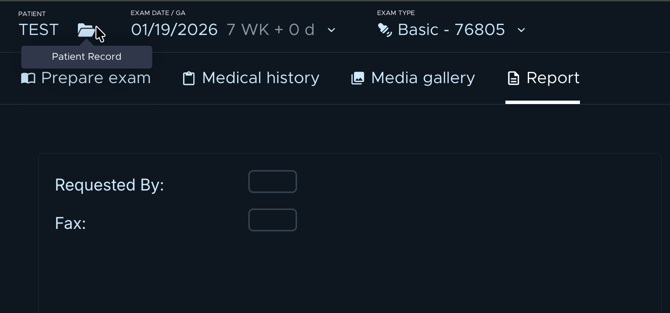
- Open the Patient Record from an exam by clicking the folder icon 📁 ("Patient Record") next to the patient name. You can also reach it from the Episodes panel's Edit episodes button.
- Editing patient info, renaming a pregnancy, or setting the preferred pregnancy requires patient-edit permission. Deleting a patient requires delete permission.
Patient record at a glance
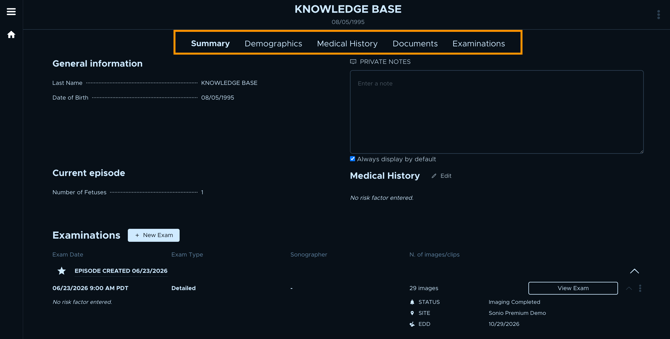
The Patient Record has five tabs:
- Summary: general information (name, date of birth), Patient notes, the Current episode, the patient's medical history, and the patient's examinations.
- Demographics: the identity fields and the ID Numbers (Sonio ID, DICOM ID, Medical health record ID).
- Medical history: the patient's medical history, for review.
- Documents: the patient's documents.
- Examinations: prior exams grouped by pregnancy.
Review patient info
Use the Summary tab for a quick overview: general information, Patient notes, the Current episode, medical history, and examinations. The Patient notes field is editable, and you can tick Always display by default so the note shows automatically.
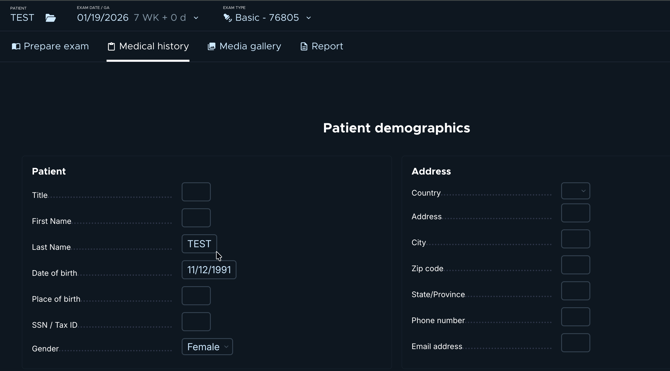
Use the Demographics tab to see identity fields and the ID Numbers:
- Sonio ID
- DICOM ID
- Medical health record ID (the MRN)
On the Patient Record, most identity fields are display-only. The editable item here is Patient notes. The patient name and date of birth are edited from the exam, in the Medical History section, using the quick-edit next to the patient name. Any editing requires patient-edit permission.
Previous exams
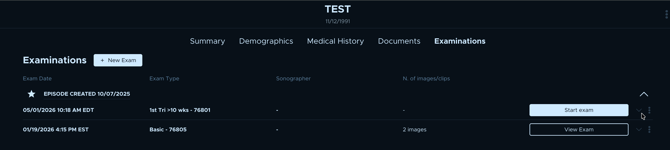
The Examinations tab lists the patient's prior exams grouped by pregnancy, most recent first.
- Expand a pregnancy to see its exams.
- Expand an exam to see its details: Status, Accession Number, Site, Ref. by, Reader, and EDD.
- Open an exam with View exam, or Start exam if it is a draft.
- Exams that belong to no pregnancy appear under Ungrouped examination(s).
Medical history
The Patient Record is where you review medical history: it appears on both the Summary tab and the Medical history tab.
To change it, edit from the exam. The View/Edit button takes you to the exam's medical history (anamnesis). So review on the record, edit on the exam.
Manage pregnancies
A pregnancy (also called an episode) groups a patient's exams. From the Examinations tab you can organize them.
-
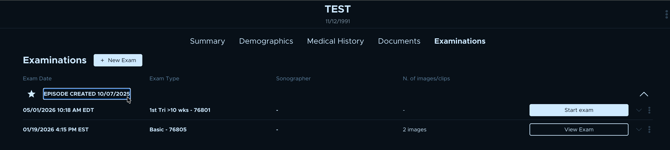
Rename a pregnancy. Each pregnancy has an editable name in its header. Click it to rename. An unnamed pregnancy shows as "Episode created [date]". Renaming requires patient-edit permission.
-
Set the preferred pregnancy. Each pregnancy has a star. The filled star marks the preferred pregnancy, also shown as the Current episode. New exams attach to it. Click an empty star to set a different pregnancy as preferred ("Set as preferred pregnancy").
-
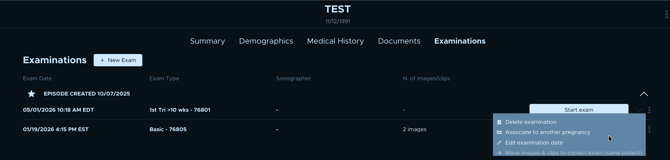
Reassign an exam to a pregnancy. From an exam's three-dot menu, use Associate to another pregnancy (or Attach to a pregnancy), then choose an existing pregnancy or New pregnancy.
-
Declare a demised fetus. This is done in the exam (the Fetuses table), not on the Patient Record. See How to remove fetus in case of fetus demise .
💡Tip: name your pregnancies
Rename a pregnancy with something meaningful so previous exams are easy to find later, instead of leaving the default "Episode created [date]".
⚠️ New exams attach to the preferred pregnancy
New exams attach to the preferred pregnancy (the filled star). Set the star on the correct pregnancy before scanning a returning patient, so the new exam lands in the right place. See "How to Prevent New Exams from Attaching to a Previous Pregnancy".
Common questions / troubleshooting
How do I open the Patient Record?
From an exam, click the folder icon ("Patient Record") next to the patient name. You can also reach it from the Episodes panel's Edit episodes button.
Can I edit the patient name or date of birth here?
Not on the Patient Record. Those fields are edited from the exam, using the quick-edit next to the patient name. On the record itself, the editable item is Patient notes.
How do I rename a pregnancy?
In the Examinations tab, click the pregnancy name in its header and type a new one. This requires patient-edit permission.