![Sonio-logo-samsung-1 1-1.png]](https://lp.sonio.ai/hs-fs/hubfs/Sonio-logo-samsung-1%201-1.png?height=40&name=Sonio-logo-samsung-1%201-1.png)
What you'll learn
- Who can sign a report and how signing differs from submitting an exam.
- How to sign a report step by step, including what signing locks and generates.
- How to amend a report after it is signed.
- How to resolve the most common signing issues.
Before you start
- You need the Reader (reading provider) role with sign permission. Sonographers cannot sign: they submit the exam for review.
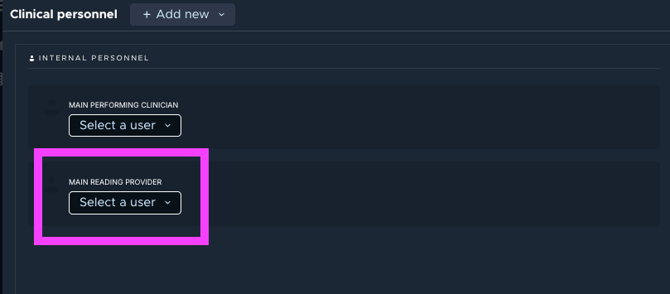
- A Main Reading provider must be assigned to the exam for the Provider to be able to see this exam to Read in their filter
- All mandatory fields must be complete. If any are missing, signing is blocked until they are filled.
How it works
Signing is the reading provider's action, and it is distinct from submitting. A sonographer submits the exam for review; the reader reviews it and signs. The Sign the report button only appears for users who can sign.
When you sign, Sonio finalizes and locks the report. The report becomes read-only (frozen), the final PDF is generated, and the exam status becomes Report signed. Where your site is configured for it, signing also distributes the report, for example by fax to the referring provider or by sending it to the EHR
Step-by-step: Sign a report
- Open the exam and review the report.
- When you are ready, click Sign the report at the bottom of the report, or from the PDF preview.
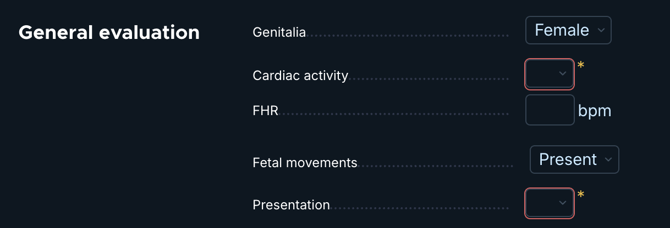
- If any mandatory fields are missing, signing is blocked. In the PDF preview the button is disabled and shows "Exam cannot be signed until all mandatory fields are filled." with a Return to report link. In the report, the missing fields are circled in red. Complete the fields, then return to step 2.
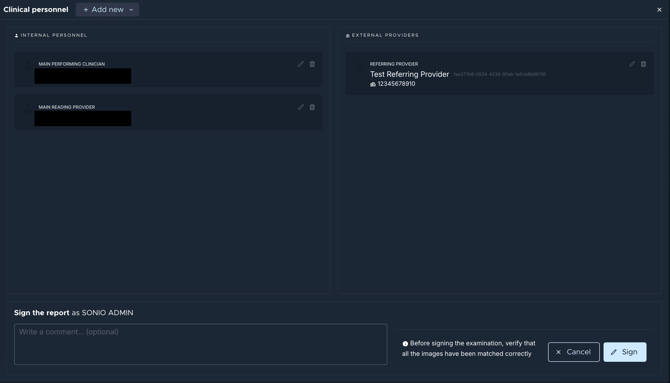
- In the confirmation panel, review that the reader provider to make sure it's your name.Add a comment if you want (the comment box is optional).
- Click Sign to finalize. You will see "Signing the report…" then "The report has been signed", and you are redirected to your dashboard. The exam status is now Report signed.
💡Tip
Sign from the PDF preview to do your final visual check and sign in one place. The preview shows the report exactly as it will be finalized, so you confirm and sign without switching views.
⚠️ Signing locks the report
Signing locks the report. To change it after signing, you must reopen (unsign) it and sign again. A main reading provider must be assigned, or the Sign button in the confirmation is disabled.
Common questions / troubleshooting
I do not see a Sign button at all.
You may not have sign permission; signing is reserved for the reading provider role.
How do I fix a report after signing?
Reopen it. At the bottom of the exam, click Edit examination prompt, enter a Reason for amendment, confirm, edit, then sign again. See How to amend a signed report.
Can a sonographer sign?
No. A Sonographer submits the exam for review but cannot sign. Signing is the Reading Provider's action.
Can another provider sign in my stead?
Yes, all Reading Providers can sign a report. In order for the right provider to see their exams, please configure your dashboard views accordingly. See How do I customize your dashboard?
If another provider is assigned to the exam you are about to sign, please update the main reading provider's name in the signature panel.
I cannot find my exam to sign.
Check if the report is assigned to you. If yes, check your dashboard View filters. See How do I customize your dashboard?