![Sonio-logo-samsung-1 1-1.png]](https://lp.sonio.ai/hs-fs/hubfs/Sonio-logo-samsung-1%201-1.png?height=40&name=Sonio-logo-samsung-1%201-1.png)
What you'll learn
- How to create, edit, hide, and reorder Views.
- How to choose what each dashboard column shows.
- How Views and columns work together.
How it works
A View is a named tab on your dashboard: a saved worklist with its own filters. Filters decide which exams a View shows (for example by date, site, exam status, performing clinician, or reading provider). You can keep several Views, such as one per site and one "All". Everyone starts with two default Views: "Last 3 days" and "All".
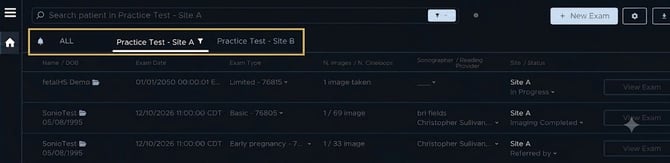
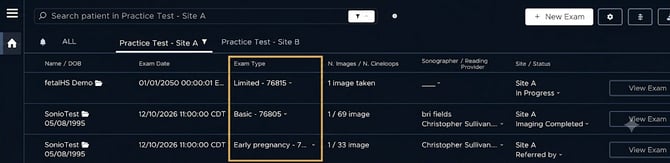
Columns decide what information shows per patient (for example Name, DOB, Exam type, Status). Columns are set once and apply across all your View tabs, while filters are set per View. Together they let each tab answer a specific question ("today, my site") while a looser View ("All") stays available for everything else.
Why it matters
Taking a few minutes to personalize your dashboard is a valuable investment: it helps you find your footing on Sonio and saves time later when you need to find the right patients quickly.
You can customize several parts of your dashboard, including filtered Views and the information displayed in each column, so you can see key details at a glance. In this guide, you'll learn how these settings work so you can make the dashboard fit your workflow.
The full setup should take no more than 10 minutes.
Step-by-step: customize your Views
- Log in to Sonio. You land on your dashboard. Click the settings wheel in the top-right corner.

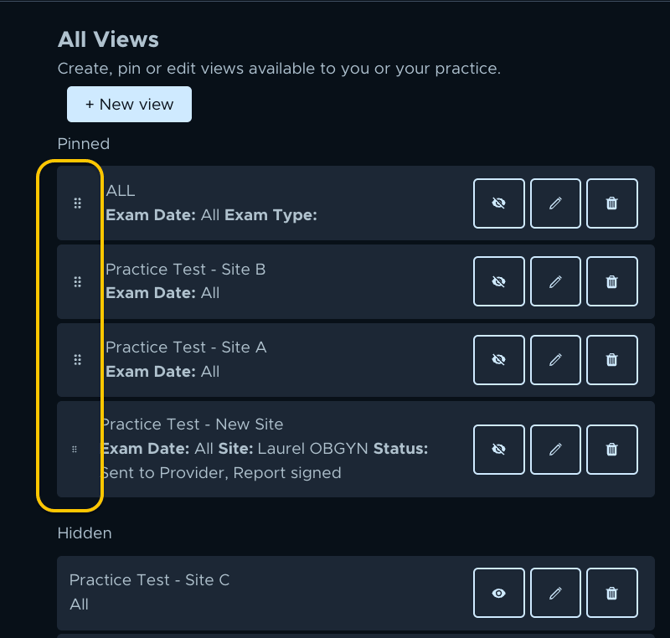
- On the settings page, open the Inbox & Views tab to see your current Views. Each View has an eye icon (hide or unhide it from your dashboard), a pencil (edit its name and filters), and a trash icon (delete it).
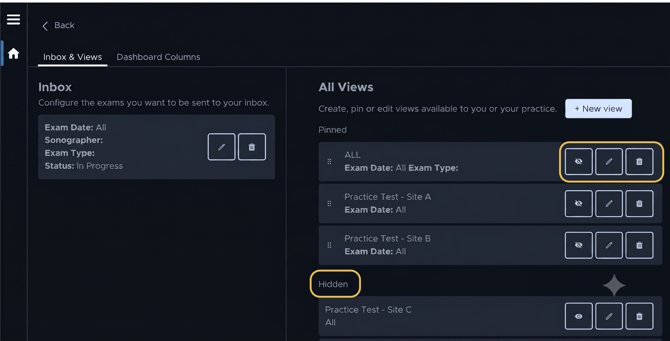
- Click + New view.
- In the Configure your view window, name the View and choose how to filter your worklist (for example exam status, site, and date).
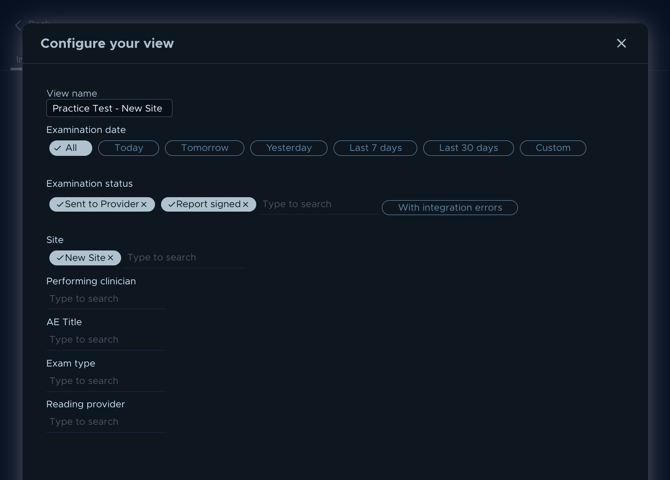
- Save by clicking the X in the top corner of the Configure your view window. Use the back button at the top left to return to your dashboard.
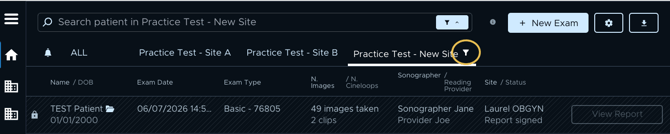
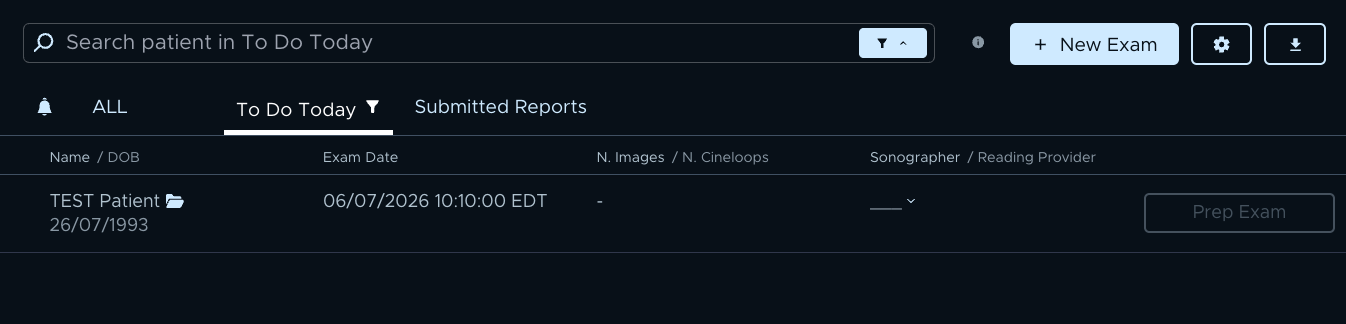
- Back on the dashboard, quick-edit any View with the funnel icon next to its name.
- To reorder or hide tabs, return to the settings wheel and drag the handles to set the tab order (for example, place the "All" tab last).
Step-by-step: customize your Dashboard Columns
- Click the settings wheel in the top-right corner.
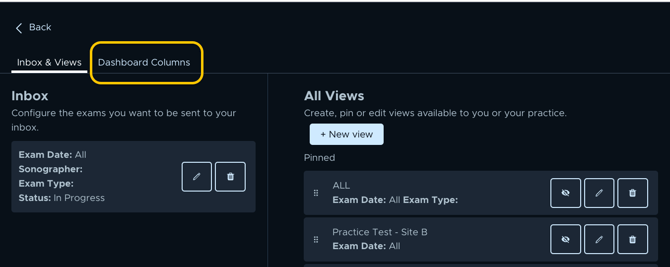
- Open the Dashboard Columns tab.
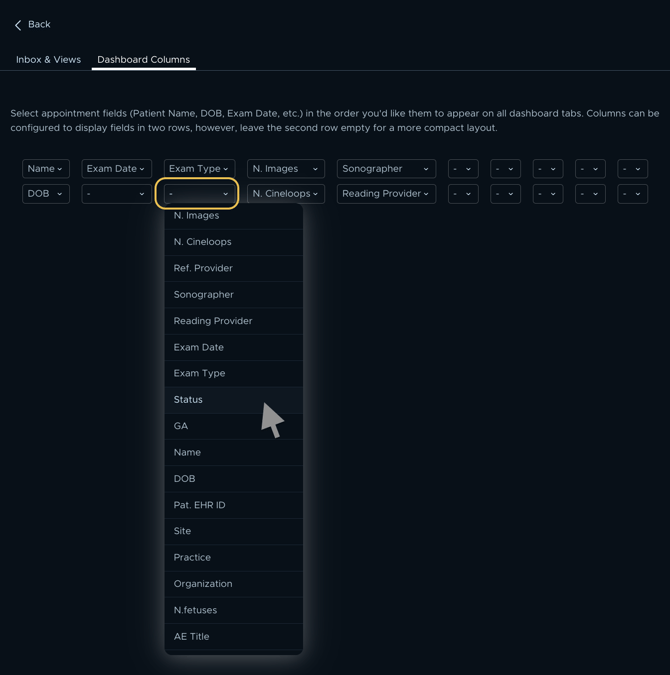
- Each column has a dropdown. Click it and choose the field to show (for example Name, DOB, Exam date, Exam type, Status, Site, Sonographer, Reading Provider, N. Images, N. Cineloops).
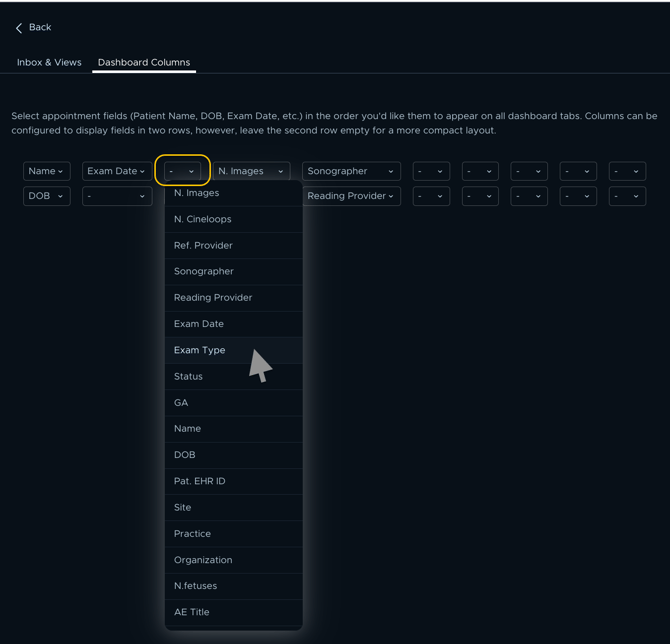
- Each column has a top and a bottom slot. The bottom slot is a second row: set it to add a second line under the main field (for example DOB under Name), or leave it as "-" for a more compact column.
💡 Tip
Columns apply across all your View tabs, so set them once. Filters are what you change per View.
Example configurations for sonographers
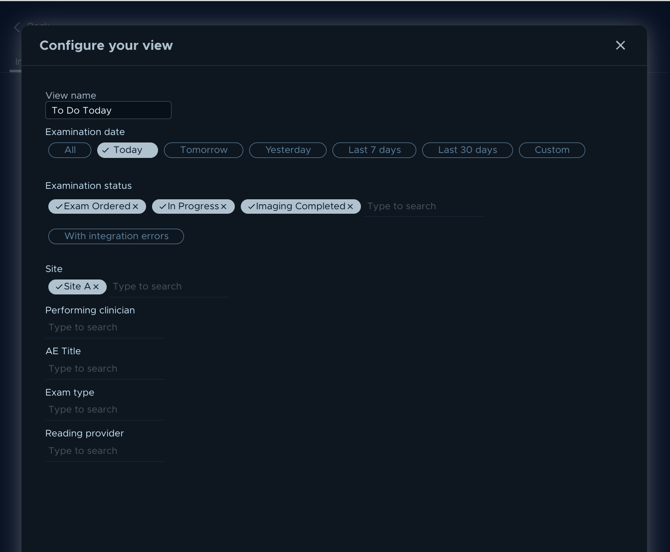
- A "Today" View per site. Filter to today's exams at the site you are working. This keeps your active list short and functions like a “to-do”.
- Examination Date: Today
- Examination Status: “Exam Ordered” (scheduled for today), “In Progress” (currently scanning) and “Imaging Completed” (Scanning is done, time to complete the report).
- Site: select the site you work at.
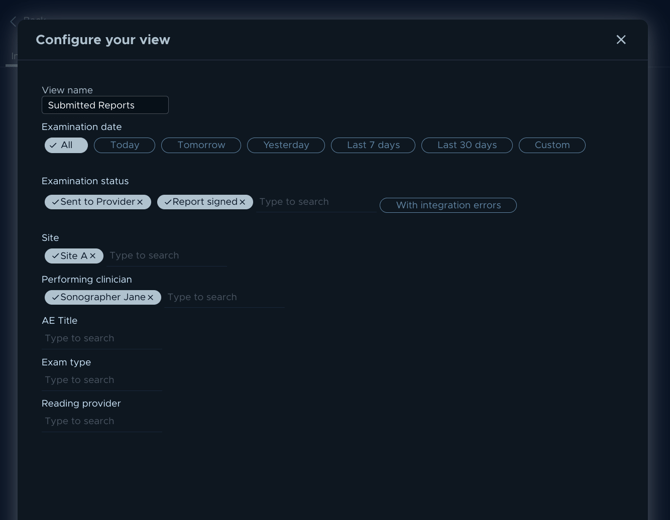
- A “Submitted reports” View. Filter
- Examination Date: All.
- Examination Status: “Sent to Provider” and “Report Signed”
- Performing Clinician: Yourself
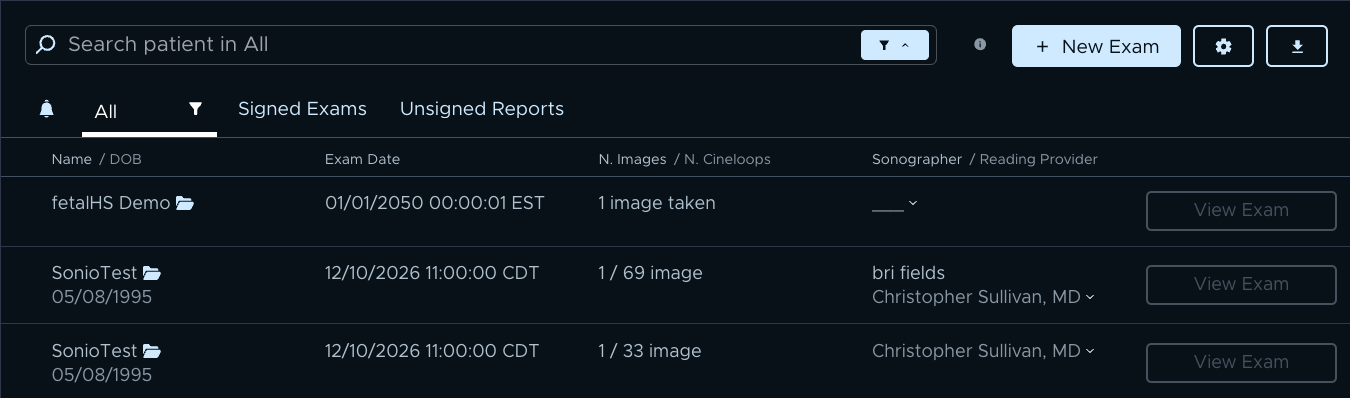
- An "All" View with minimal filters. Keep one View with few or no filters, so you can find a patient from a different date of service or a different site.
Example configurations for readers
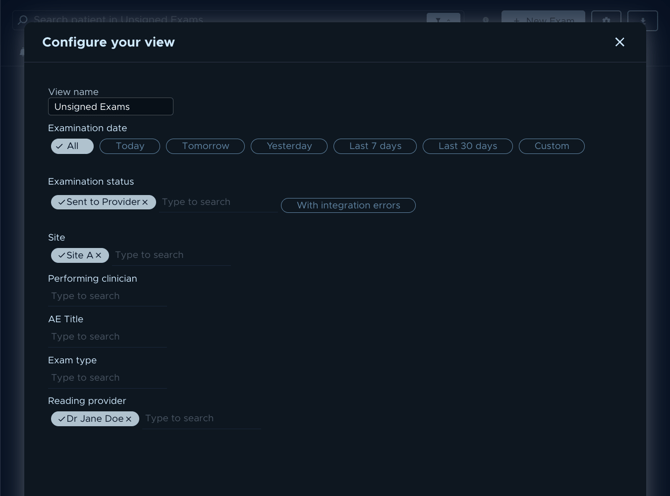
- An "Unsigned Exams" View, so exams ready for review appear in one place.
- Examination Date: All (or your preferred date range)
- Examination Status: Sent to Provider (the ready-for-review state)
- Reading Provider: Yourself
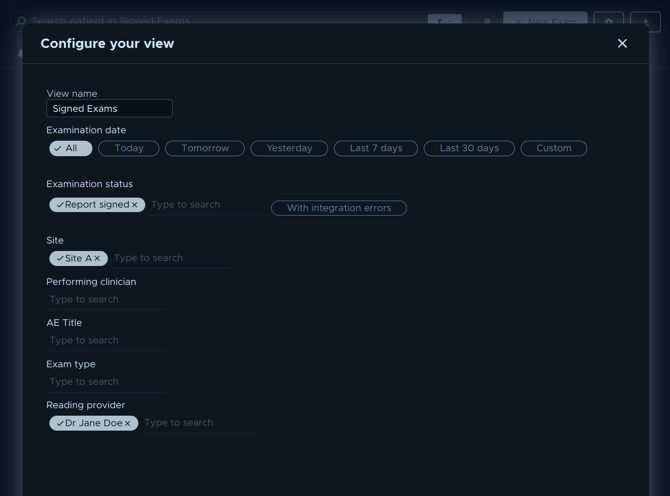
- A "Signed Exams" View. Filter Status to "Report signed" to see finalized exams.
- Examination Date: All (this allows you to see all historical signed exams).
- Examination Status: Report Signed
- Reading Provider: Yourself
- The All tab. Use it when searching for a patient who does not match your current filters.
Common questions / troubleshooting
An exam is missing from a View.
A filter on that View is excluding it. Switch to your "All" View (minimal filters) to confirm, then adjust the filter. Keeping an "All" View is the simplest safeguard against losing track of an exam.
How do I show date of birth under the patient name?
On the Dashboard Columns tab, set a column's top dropdown to Name and its bottom dropdown (the second row) to DOB.
Do sonographers and readers start with different Views?
No. Everyone starts with the same two Views ("Last 3 days" and "All") and personalizes from there.