![Sonio-logo-samsung-1 1-1.png]](https://lp.sonio.ai/hs-fs/hubfs/Sonio-logo-samsung-1%201-1.png?height=40&name=Sonio-logo-samsung-1%201-1.png)
Exam type and method: how they work together
Two settings help build your report in Sonio: exam type and method.
Exam type is the overall type of exam you are documenting, such as Detailed, Follow-up, NT, or GYN. It creates the base report by setting the default report template, the default anatomy checklist items, and the primary CPT code.
Method is where you record the specific procedure or procedures performed during that exam, such as BPP, NST, Invasive Procedures, or Fetal Echo. Methods are added on top of the exam type. When you select a method, Sonio may add the matching section to the report so you can document it, show the method in the report, and suggest any related CPT codes in the Coding section if coding is set up for your site.
In short: exam type = the base report. Method = what was performed within that report.
How to select or change the exam type
There are two ways.
Option 1: from an open exam
- Open the exam.
- In the exam top bar, click the Exam type dropdown and choose the exam type
- If you are asked Change exam type?, confirm. The report reloads on the new template, so re-check anything you already entered. If the exam already has images, you will be asked to reassociate them to the new template.
Option 2: from the Dashboard
- On your dashboard, find the Exam type column. If you do not see it, add it from your dashboard columns.
- Pick the exam type from the dropdown.
⚠️Warning
You cannot change the exam type once the report is signed, because the exam is then locked. You also need edit permission on the exam.
Step-by-step: add a method
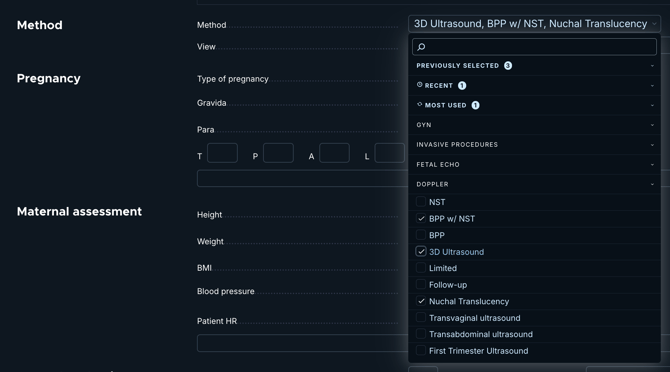
- Open the report and find the Method field.
- Click it and select all applicable methods from the dropdown. It is multi-select, so you can choose more than one.
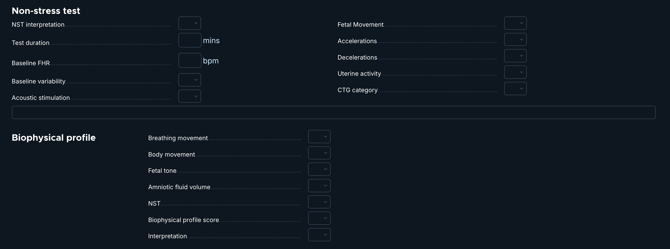
- For a method that has a matching section (for example BPP, NST, Invasive Procedures, or Fetal Echo), that section appears automatically in the report and in the sidebar.
- If your site uses coding, open the Coding section: the CPT codes for the selected methods are suggested there.
⚠️Warning
Removing a method hides its section again and clears that section's content. Only remove a method if you did not perform it.
💡Tip
A CPT code is suggested only when it is tied to a selected method, and only where your site has coding configured. If an expected code is missing, check that the matching method is selected.
Common questions / troubleshooting
Which methods add a section?
Methods that have a matching section in your report template, such as BPP, NST, Invasive Procedures, and Fetal Echo. The exact list is configured per site, so your set may include others (it is not a fixed list of four).
I selected a method but no section appeared.
The section is conditional on your report template. If it does not drop, the template may need a configuration fix. Please contact Sonio support.
No CPT code was suggested.
A CPT code is suggested only for a selected method, and only where coding is set up for your site. If there is no associated method, no code is suggested.