![Sonio-logo-samsung-1 1-1.png]](https://lp.sonio.ai/hs-fs/hubfs/Sonio-logo-samsung-1%201-1.png?height=40&name=Sonio-logo-samsung-1%201-1.png)
What is a flash report?
A flash report is a saved set of default values for an exam type. Applying it fills those fields in one click. Flash reports are set up per exam type and shared across your practice, so the ones you see are the ones built for your practice and that exam type specifically.
What a flash report can and cannot fill
- Can fill: custom report fields (including free-text blocks and dropdowns), Methods, Indications, and Findings.
- Cannot fill: Measurements, the Fetal Anatomy (checklist) section, Maternal assessment, Genitalia, placenta position and presentation, and Macros.
How to apply a flash report
- Open the report.
- Select the Exam Type.
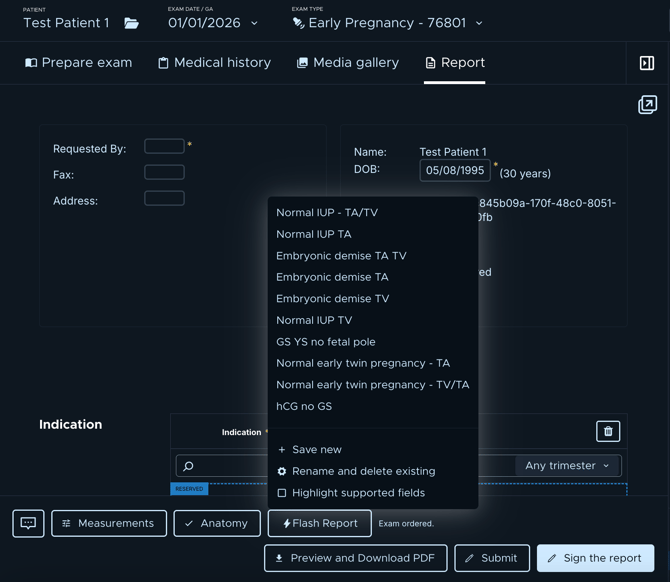
- On the report bottom bar, click the Flash Report (⚡) icon.
- Select the flash report you want from the dropdown.
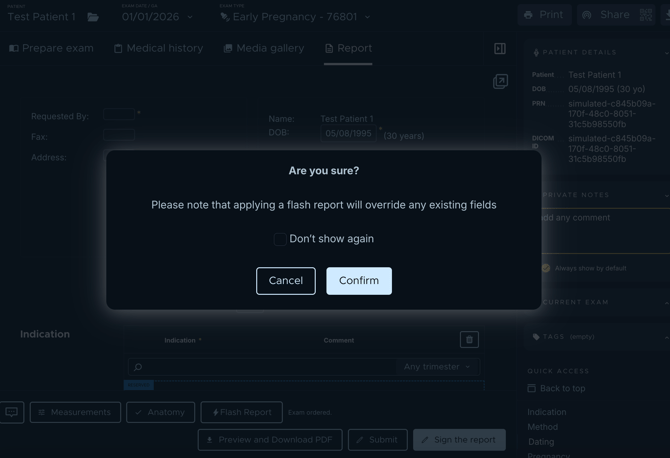
- Sonio fills the report with that flash report's values. The first time, you will see a note that applying will override existing fields.
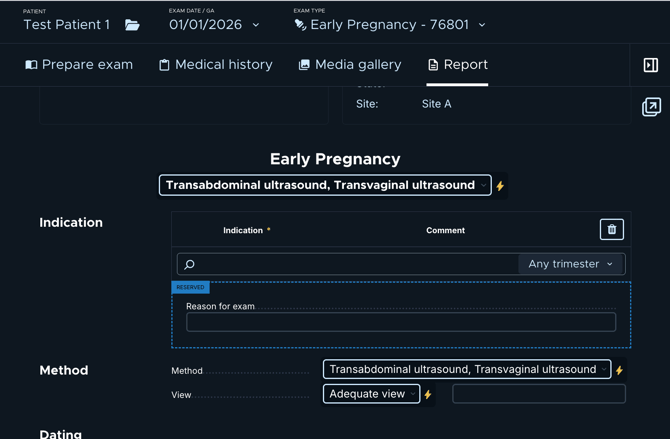
- Feel free to apply a flash report to speed things up. It can pre-fill many fields for you, and you can always review and edit the report afterward by just adding or adjusting any details that aren’t covered by the flash report.
⚠️Warning
Applying a flash report overrides the fields it includes, even if they already had values. Fields it does not include stay unchanged. So apply your flash report first, then enter your indication, dating, and any custom edits. If you apply it afterwards, it can replace what you typed.
Limitations
- You cannot edit a flash report's contents in the app. You can rename it, or delete it and create a new one (if you have permissions to do so). See the Creating and editing flash reports super-user guide.
- A flash report is available only for the exam type it was created for, and its behavior is matched to the number of fetuses.
- Flash reports are shared at the practice level, not per user. Renaming or deleting one affects everyone in the practice.
- Applying a singleton flash report on a multifetal exam will not fill in the fields for the other fetuses
Common questions / troubleshooting
Why did my typed value get replaced?
You likely applied the flash report after typing. Apply the flash report first, then enter your details.
Can I edit a flash report?
Not directly. You can rename it, or delete it and create a new one. See the super-user guide.
It is for a different exam type, or no flash report exists for your practice and this exam type.