![Sonio-logo-samsung-1 1-1.png]](https://lp.sonio.ai/hs-fs/hubfs/Sonio-logo-samsung-1%201-1.png?height=40&name=Sonio-logo-samsung-1%201-1.png)
What you'll learn
- The three connections every ultrasound system needs to Sonio: DICOM Destination, SR Destination, and WORKLIST configuration.
- How to connect a net-new ultrasound system, including registering a new AE Title.
- How to replace an ultrasound system in an existing room without registering a new AE Title.
- The common connectivity checks (Verify passes, Ping is expected to fail by design).
Before you start
- This is an admin or champion setup task, done together with Sonio support, via a Sonio ticket.
- The exact on-machine menu paths differ by ultrasound vendor. This article does not document a single vendor's menu path.
- Have the room ready and know the naming convention used by the other ultrasound systems at your location. The AE Title format is SHORTSITENAME_ROOMNUMBER (for example, a site's short name plus "RM4" for Room 4, “TESTSITE_RM4”). Follow the same convention as the other machines at that location.
- Confirm the configuration values used by the other machines at your site: the DICOM IP, AE Title, Alias, and Port; the SR IP, AE Title, Alias, and Port; and the Worklist IP and Port.
How it works
An ultrasound system talks to Sonio over three connections, all configured on the machine:
- DICOM Destination sends images and media to Sonio.
- SR Destination sends structured-report measurements to Sonio.
- WORKLIST configuration lets the machine query Sonio's worklist to pull scheduled patients.
Each machine is identified by its AE Title, which follows the SHORTSITENAME_ROOMNUMBER format. A net-new machine needs a newly assigned AE Title. A replacement machine reuses the AE Title already registered to the old machine being replaced.
Step-by-step: Connect a net-new ultrasound system
- Open a Sonio ticket to register the newly assigned AE Title for the new machine. Use the SHORTSITENAME_ROOMNUMBER format and follow the same naming convention as the other ultrasounds at that location (for example, the site's short name plus "RM4" for Room 4).
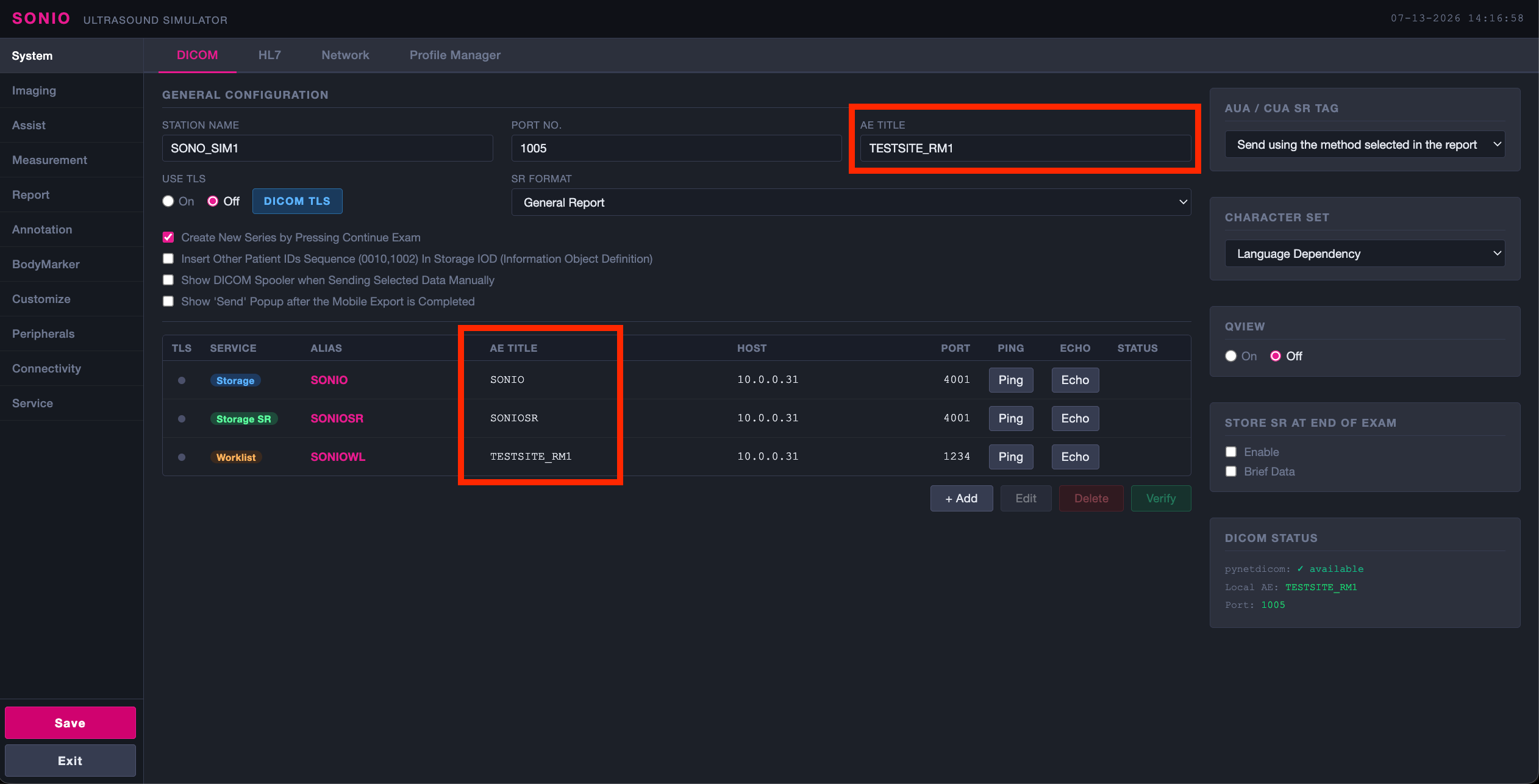
- Configure the DICOM Destination the same way as the other ultrasound systems at the site: same DICOM IP, AE Title, Alias, and Port; same storage preferences (compression settings, include pixel data).
- Configure the SR Destination the same way as the others: same SR IP, AE Title, Alias, and Port; same SR preferences (include private tags).
- Configure the WORKLIST the same way as the others: same Worklist IP and Port; same preferences (auto refresh). Use the newly assigned AE Title for the worklist AE Title.
- Confirm connectivity with Verify on the machine. Verify should pass, with the exception of the worklist. The worklist destination requires an exam to be scheduled for verify to pass.
- As the final checks, send a test study and query the worklist.
💡 Tip
Copy the DICOM Destination, SR Destination, and WORKLIST values directly from another working machine at the same site. The only value that changes for a net-new system is the AE Title and AE Title of the worklist destination.
⚠️ Connectivity checks
Ensure TLS is turned off (unchecked) on the ultrasound. Ping will always fail; that is part of Sonio's security posture and is expected, so use Verify to confirm connectivity. Do not consider the setup complete until you have sent a test study and queried the worklist.
Step-by-step: Replace an ultrasound system
When you replace a machine in an existing room, reuse the room's existing configuration. No new AE Title registration is needed.
- Configure the DICOM Destination, SR Destination, and WORKLIST with the same values the replaced machine's room used before: same IP, AE Title, Alias, and Port, and the same preferences for each connection.
- Because the room reuses its existing AE Title, you do not need to open a ticket to register a new one.
- Confirm connectivity with Verify, then send a test study and query the worklist as the final checks.
Common questions / troubleshooting
Ping fails on the ultrasound. Is that a problem?
No. Ping always fails by design, as part of Sonio's security posture. Use Verify instead. If Verify passes, connectivity is confirmed.
The worklist is empty after setup. What should I check?
Confirm the WORKLIST values match the other machines at the site (Worklist IP and Port) and that the worklist Alias is exactly "WORKLIST", with no capitalization or spacing variants. Confirm that there is an exam scheduled in Sonio that should appear on the worklist. For a net-new system, confirm the worklist AE Title uses the newly assigned AE Title.
Do I need a new AE Title when replacing a machine?
No. A replacement reuses the room's existing AE Title and configuration, so no new AE Title registration is needed.
Does TLS need to be on?
No. TLS must be turned off (unchecked) on the ultrasound.