![Sonio-logo-samsung-1 1-1.png]](https://lp.sonio.ai/hs-fs/hubfs/Sonio-logo-samsung-1%201-1.png?height=40&name=Sonio-logo-samsung-1%201-1.png)
How it works
A patient exam is organized into areas, each its own page. You switch between them from the buttons in the left navigation:
- Prepare exam (book icon): the episode, pregnancy details, fetuses, and exam history.
- Medical history (clipboard icon): the patient's anamnesis.
- Media gallery (image icon): every image, cineloop, and 3D capture from the exam.
- Report (report icon): the structured report you fill in and sign.

A sidebar sits on the right of every exam page. It holds patient details, Private Notes, Tags, the current exam, quick links to sections of the page you are on, and more. You can resize it or hide it with Toggle examination sidebar.
Step-by-step: Move between the exam's pages
- Open the patient exam.
- In the left navigation, click the area you want: Prepare exam, Medical history, Media gallery, or Report.
- The page changes to that area. The right sidebar stays in place.
There are no keyboard shortcuts for switching pages. Use the left-navigation buttons.
Prepare exam: episode and private notes
The Prepare exam page is where the pregnancy and exam context lives.
- Patient block: Name, Date of birth, Conception date, LMP Date, and Gestational Age. These are read-only here and come from the pregnancy and episode. Each field appears only when that information is available.
- Pregnancy section: shows the episode, a fetus sex handler, and a Fetuses table where you can create, update, or delete fetuses (edit permission required).
- Exam History: lists each pregnancy episode and its exams, and marks the current exam. The Edit episode assignment button opens the patient page.
- Private Notes: the same patient notes shown in the report sidebar (see below).
💡Tip. The episode and pregnancy structure is edited on the patient page, not inline in the exam. Use Edit episode assignment to get there.
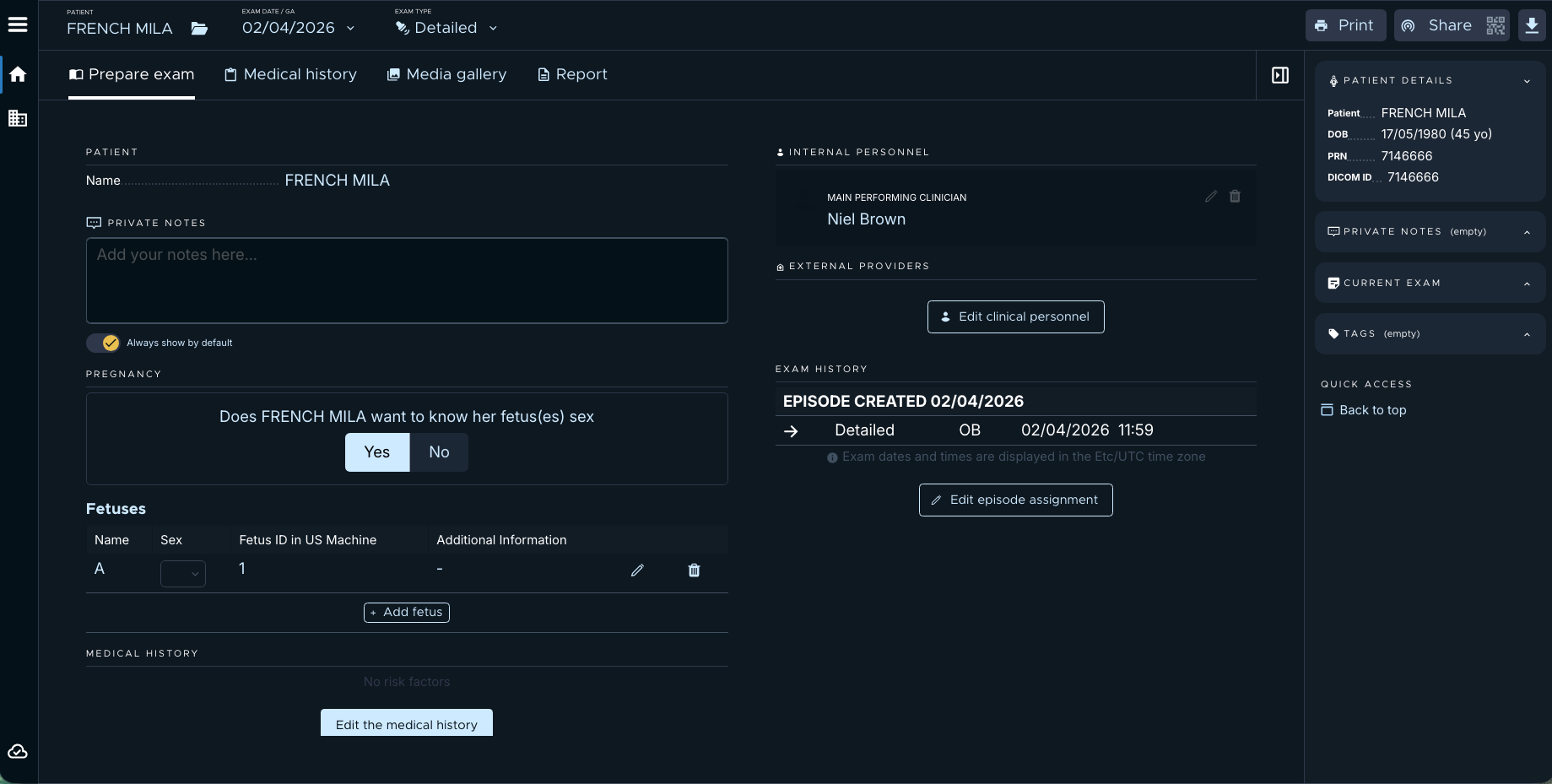
Private Notes: one note, shown in two places
Private Notes are tied to the patient, not to a single page. The notes on Prepare exam and the notes in the Report sidebar are the same notes. Edit one and the other updates.
- The field is labelled Private Notes, with the placeholder "Add your notes here…".
- Notes save automatically.
- They are visible only to clinicians (readers and sonographers). They are never visible to patients.
- The Always show by default toggle surfaces the note across this patient's exams for all users. Turning it off warns that note alerts will be disabled for all users. A yellow border marks an always-visible, important note.
- If another user edits the same notes, you see "Notes have been updated by another user" with a Merge option.
- Editing requires patient-edit permission.
⚠️ Private notes never appear in the report PDF. They are an internal aid for the clinical team only.
Media gallery: the exam's images
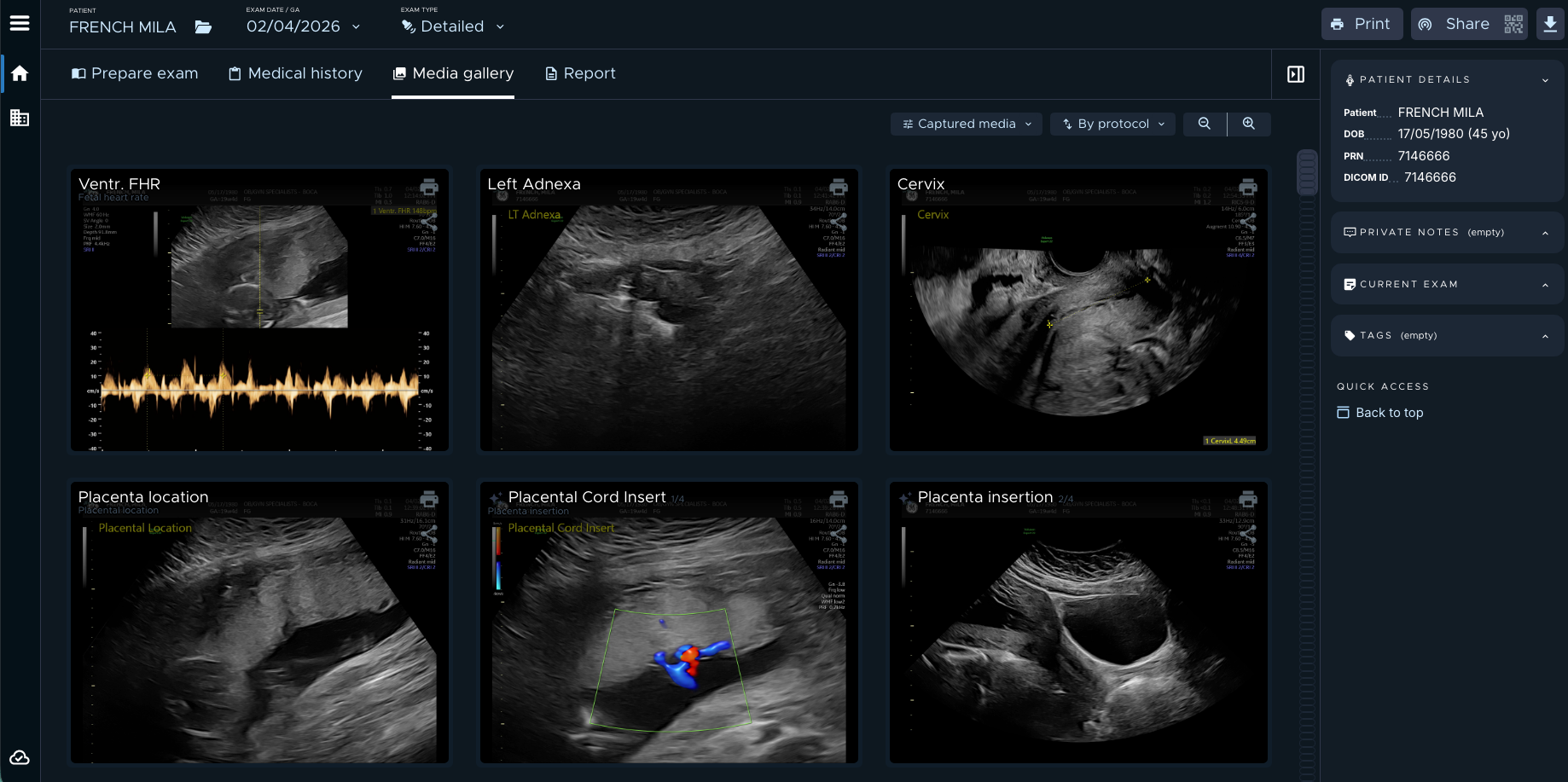
The Media gallery page shows a grid of everything captured during the exam: images, cineloops, and 3D. Double-click any media to open it.
Controls across the top let you filter and arrange the grid:
- Sort: By protocol or By acquisition (only available to Premium users).
- Show: All, Captured media, Remaining media, or Unverified media (only available to Premium users).
- Media type: All, Images, Cineloops, or 3D media.
- Plus a zoom control and a fetus selector.
When manual upload is enabled for your site, you can drag and drop files to add them. If nothing was captured yet, the page reads "Please take your first image".
Report: content and private notes
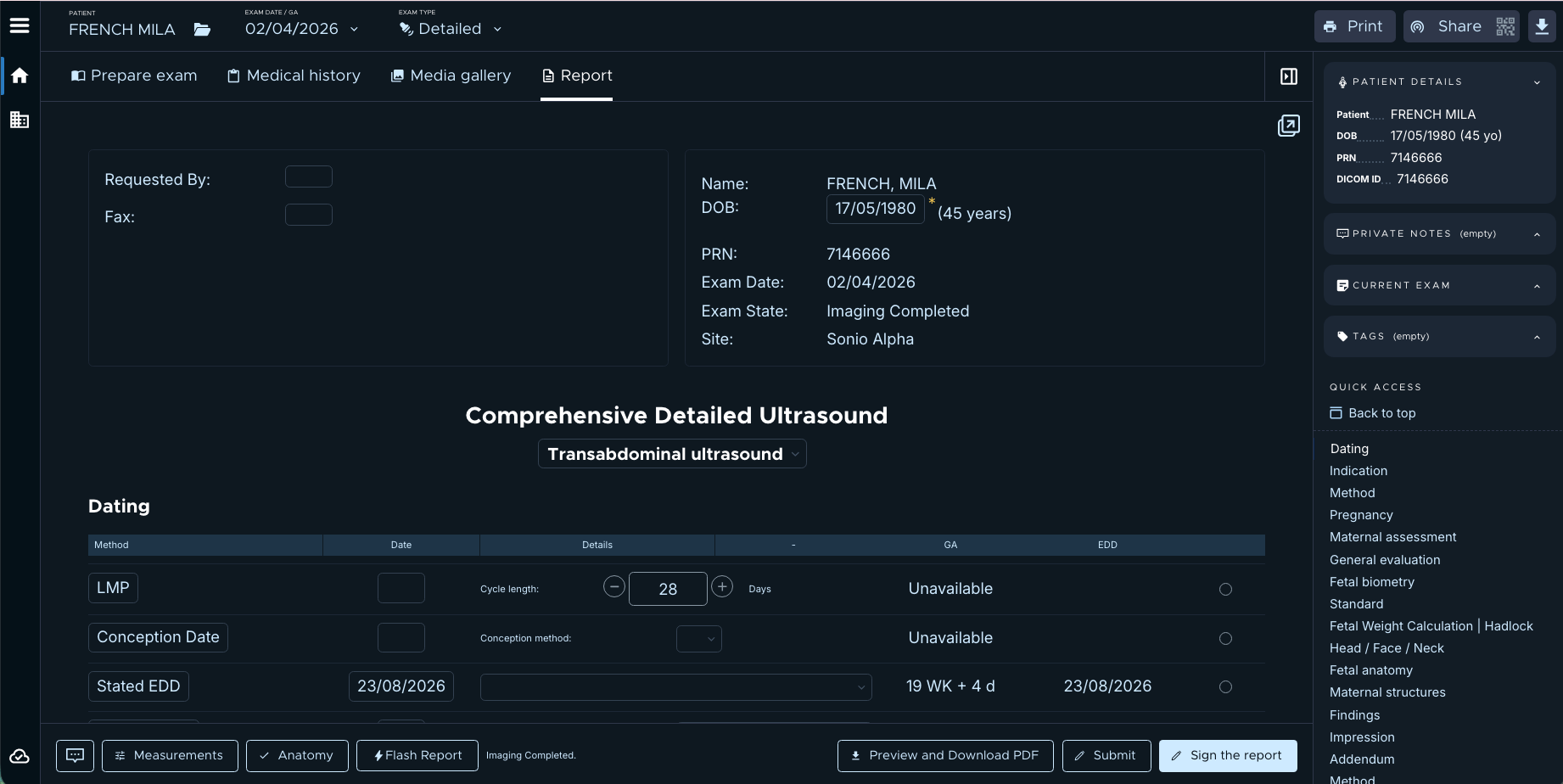
The Report page holds the structured report. The body is template-driven: you fill in defined sections rather than typing free text.
- Edit fields inline. Some open a dedicated editor as a modal, such as measurements, the checklist, or image selection.
- When you submit, required fields are validated.
- The Private Notes in the report sidebar are the same patient notes shown on Prepare exam.
⚠️ A signed report is read-only. To revise a signed report, it must be unfrozen first, which is permission-gated.
The right sidebar and Workspace
The right sidebar is present on every exam page. It holds patient details, Private Notes, Tags, the current exam, and quick links to the sections of the page you are on. Drag its edge to resize it, or use Toggle examination sidebar to hide and show it.
Common questions / troubleshooting
- Are the private notes on the report the same as on the prepare page? Yes. They are patient-level notes shown in both places. Editing one changes the other.
- Do private notes show on the PDF? No. They are visible only to clinicians and never appear in the report PDF.