![Sonio-logo-samsung-1 1-1.png]](https://lp.sonio.ai/hs-fs/hubfs/Sonio-logo-samsung-1%201-1.png?height=40&name=Sonio-logo-samsung-1%201-1.png)
What you'll learn
- How images travel from the ultrasound machine to Sonio.
- The one test that tells you if connectivity is the problem.
- How to tell whether one machine or every machine is affected, and why that matters.
- How to resend a study or upload it manually so no work is lost.
How it works
When you capture an image (a P button) or end the exam, the ultrasound machine sends the file to the destinations configured on it: the DICOM Destination for images and the SR Destination for measurements and the structured report.
From there, the file reaches Sonio's on-site Uplink (also called SonioEdge). The Uplink is either a local install on a computer or server at your site, or a Sonio-hosted Uplink reached over a secure VPN tunnel. Some large sites use a DICOM router in front of it.
The Uplink forwards the data to Sonio Cloud. Sonio then matches it to the right exam using the Accession Number. If the Uplink or the path between the machine and Sonio is down, the images do not arrive.
Before you troubleshoot
- Run Verify, not Ping. On the machine's DICOM settings, run Verify (also called C-ECHO) against the Sonio destinations. Verify is the source of truth. Ping always fails by design, because Sonio blocks it, so ignore Ping. If Verify passes, connectivity is fine and the problem is in the workflow, the destination, or the send queue. If Verify fails, it is a machine, network, or configuration issue.
- Know whether one machine or all machines are affected. This single question points you to the cause. Compare against other machines or rooms before you conclude.
- Connectivity setup is an admin and Solutions Engineer task. Setting AE Titles, destinations, the VPN, and the Uplink is handled by a site admin or champion together with your Sonio Solutions Engineer, usually through a Sonio support ticket. As a sonographer, your frontline levers are: run Verify, check the send queue, resend, upload manually, and contact support.
Troubleshooting: images are not arriving
- Run Verify on the Sonio destinations. On the machine's DICOM settings, run Verify (C-ECHO) against the Sonio DICOM Destination and SR Destination. If it passes, connectivity is fine and the issue is the workflow, destination, or queue (continue below). If it fails, it is a machine, network, or config issue for your site IT or Solutions Engineer.
- Check whether it is one machine or all machines. If only one machine is affected, the problem is almost always that machine: confirm it is sending to the correct Sonio destination, that the AE Title and IP and port are correct, that TLS is off, and that it is on the right network. If all machines at a site (or multiple sites) are affected, suspect a shared dependency: the Uplink is offline (for example the host computer slept or lost power), a VPN tunnel is down, the send queue is backed up, or the site network changed.
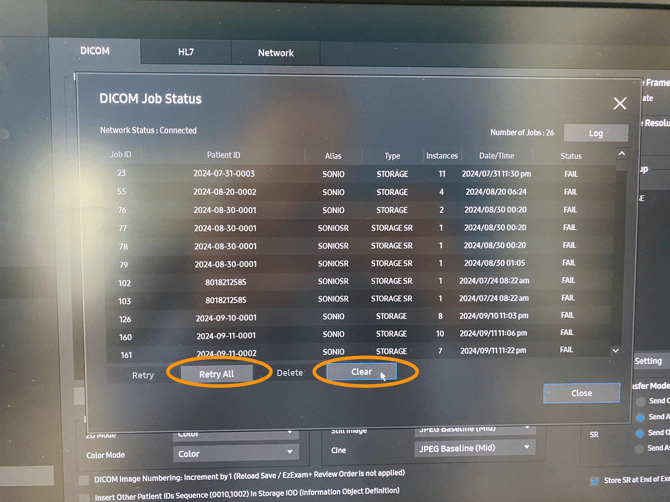
- Check the send queue (spooler) on the machine. This tells you whether the images even left. If the study is stuck, retrying, or failed in the queue, it never left the machine. If it shows as sent but is not in Sonio, the issue is downstream (Uplink, network, or matching).
- Resend the study. Machines keep a local archive. Once connectivity is restored, find the study and resend it to the Sonio destination. It lands on the correct exam by its Accession Number.
- Route by symptom: missing exam vs no images. If the exam is in Sonio but has no images, this article applies. If the exam is missing entirely, it is a routing or worklist issue (see "I cannot find the patient/appointment on the US worklist").
- Contact support. If Verify fails, or if images show as sent but are still not in Sonio, open a Sonio support ticket. Connectivity fixes (AE Titles, destinations, VPN, the Uplink) are handled with your Solutions Engineer. If you can include the affected machine/room, whether one machine or all machines are affected, the Verify result for the DICOM and SR destinations, the send queue status, and the Accession Number or exam details if available.
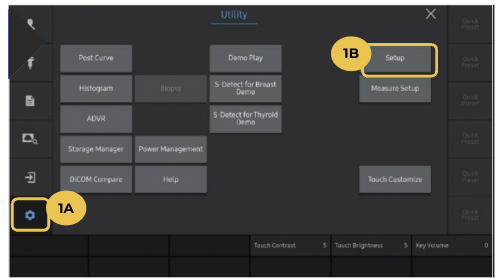
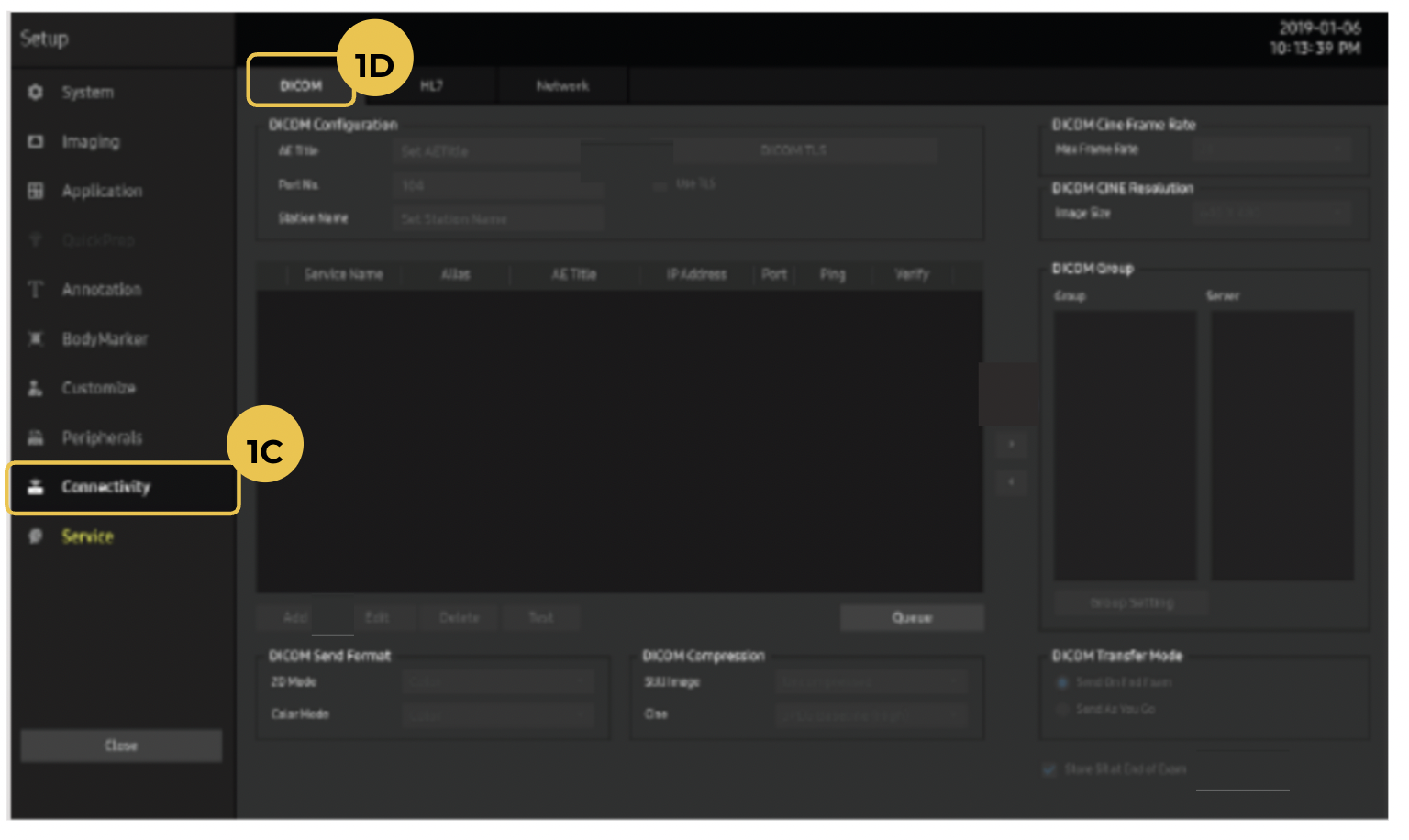
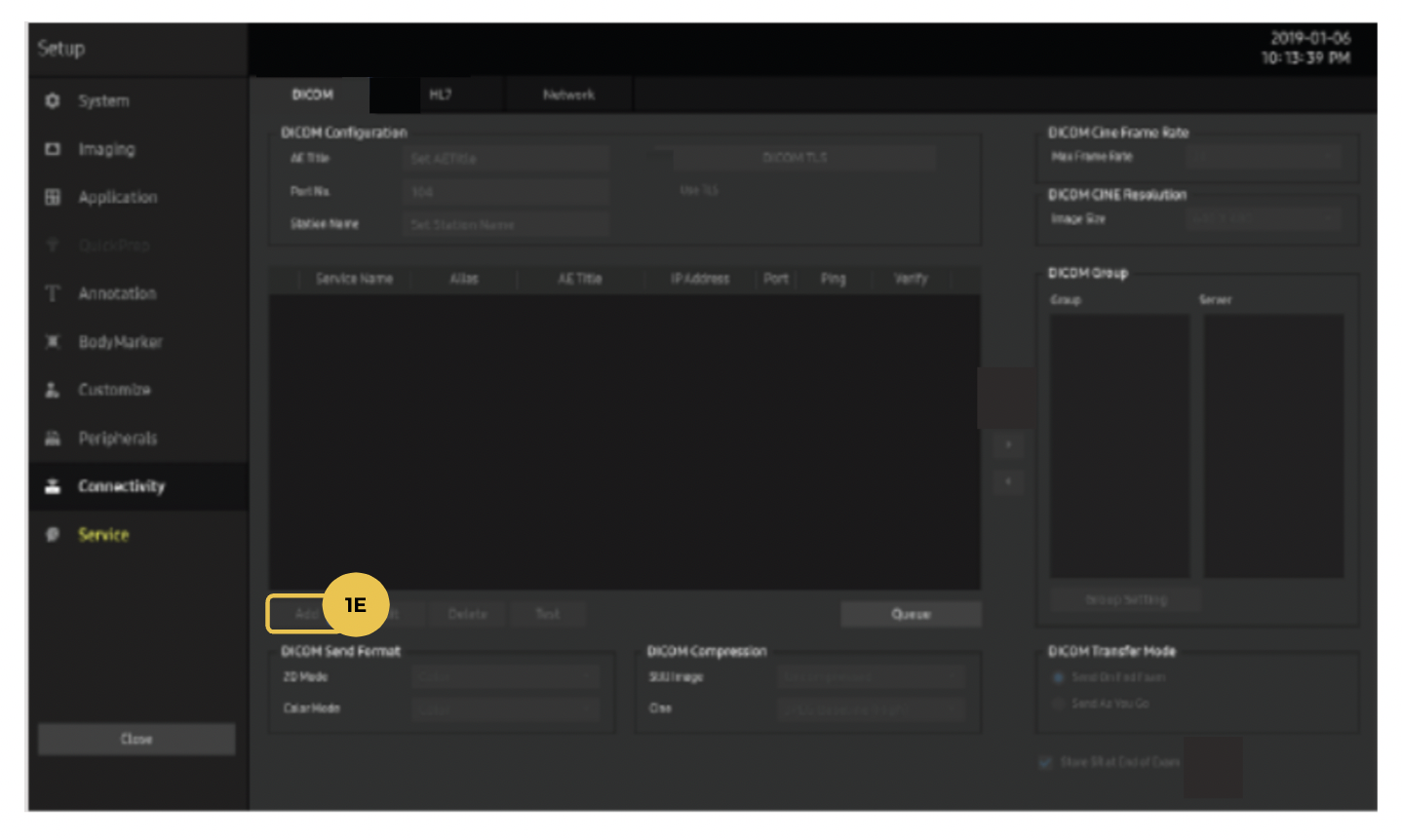
Steps to Test (or Verify depending on the machine):
- 1A - Click on Utility
- 1B - Click on Setup
- 1C - Click on Connectivity
- 1D - Select the DICOM tab
- 1E - Select Test (or Verify depending on the machine)
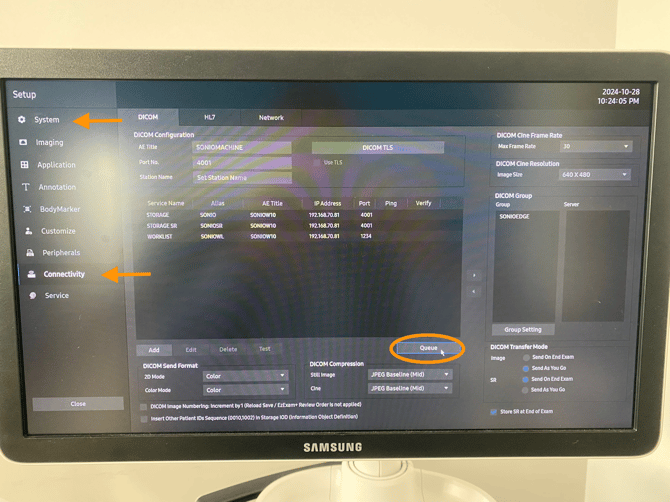
How to check whether the study left the ultrasound machine:
- On the ultrasound machine, look for the send queue or spooler icon/status area. This is often shown in a lower corner of the screen, depending on the machine model.
- Open the queue and find the study you are trying to send to Sonio.
- Check the study status:
- Sending, retrying, or pending: the study has not successfully left the machine yet.
- Failed or error: the machine tried to send the study, but the transfer failed. Run Verify on the Sonio DICOM destinations and contact support if needed.
- Sent or completed: the study appears to have left the machine. If it is still not in Sonio, the issue may be downstream, such as the Uplink, network path, or exam matching.
- If the study is stuck or failed, try resending it once connectivity is restored.
- If possible, take a screenshot of the queue status and include it when contacting Sonio support.
💡Tip: you do not lose work when the connection drops
Once the connection is back, open the machine's local archive, find the study, and resend it to the Sonio destination. It matches to the right exam automatically by its Accession Number. If you must keep scanning while connectivity is down, scan under the correct Accession Number and DICOM ID so the study matches when you resend.
⚠️Use Verify, not Ping
Do not use Ping as the connectivity test. Ping is expected to fail in Sonio’s current setup, so a failed Ping does not mean the connection is down. Use Verify / C-ECHO on the Sonio DICOM destinations instead. Also confirm that TLS is off on the machine’s Sonio destination; leaving TLS on can block DICOM sends.
Common questions / troubleshooting
Only one machine has the problem, or is it all of them?
Start here. If only one machine is affected, the cause is almost always that machine: check its Sonio destination, AE Title, IP and port, that TLS is off, and that it is on the right network. If every machine at a site is affected, suspect a shared dependency: the Uplink offline, a VPN tunnel down, a backed-up send queue, or a site network change. Comparing rooms or machines is the fastest way to tell these apart.
The machine says the images were sent, but they are not in Sonio. What now?
Check the send queue (spooler) first. If it truly shows sent, the images left the machine and the issue is downstream (the Uplink, the network, or matching). Run Verify to confirm connectivity, then open a Sonio support ticket so your Solutions Engineer can check the Uplink and the path.
Can I upload the images manually?
Yes. When auto-transmit is not possible, you can upload the images into the exam in Sonio directly (see "How to upload studies on Sonio"). You can also resend from the machine's local archive once connectivity is back.
The whole exam is missing, not just the images.
That is a different issue. If the exam is in Sonio but has no images, it is a DICOM-send or machine issue, which this article covers. If the exam is missing entirely, it is a routing or worklist issue (see "I cannot find the patient/appointment on the US worklist"). Note: at some report-only sites, machines are intentionally not configured to send images.