![Sonio-logo-samsung-1 1-1.png]](https://lp.sonio.ai/hs-fs/hubfs/Sonio-logo-samsung-1%201-1.png?height=40&name=Sonio-logo-samsung-1%201-1.png)
What you'll learn
- How a scheduled patient travels from the EHR to your ultrasound machine.
- What to check when the exam is in Sonio but not on the machine worklist.
- What to do when the patient or exam is not in Sonio at all.
- The workarounds that let you scan now and reconcile later.
Before you start
Here is the chain in one line: the EHR sends an order to Sonio, Sonio publishes it to the machine worklist, and the Accession Number links that order to the images the machine sends back.
The machine worklist only shows appointments within a limited scheduling window. Very old or far-future appointments may not appear yet, so check that you are looking for an appointment scheduled around the current date, then refresh the worklist on the ultrasound machine.
Start with these two checks:
- Refresh the worklist on the ultrasound machine.
- In Sonio, check that your dashboard filters are not hiding the exam. Confirm the date range includes the appointment date, select the correct site or location if applicable, and clear any status, provider, or reader filters that could exclude the exam.
What you can check yourself
You can usually check these items directly:
- Refresh the worklist on the ultrasound machine.
- Confirm the exam is visible in Sonio.
- Check that your dashboard filters are not hiding the exam.
- Confirm you are looking at the correct appointment date, site, location, provider, or reader.
- If you need to scan now, manually enter the DICOM ID and Accession Number on the ultrasound machine.
What may need admin or Sonio Support help
Contact your site administrator or Sonio Support if:
- The exam is visible in Sonio but still does not appear on the machine worklist after refreshing.
- Multiple scheduled exams are missing from the machine worklist.
- The appointment type may not be configured to appear in Sonio or on the worklist.
- The ultrasound machine may be pointed to the wrong worklist server.
- The Uplink, network, firewall, or EHR feed may be offline or misconfigured.
How it works
When an exam is scheduled in the EHR, the EHR sends an order to Sonio. Sonio creates the patient and exam (you can see it on your dashboard) and publishes it to the machine worklist, a DICOM Modality Worklist served through Sonio's on-site Uplink device. Your machine queries that worklist and the patient appears for you to select.
Two identifiers do the work behind the scenes:
- The Accession Number ties the scheduled order to the images the machine sends back.
- The DICOM ID identifies the patient.
One thing to know about grouped exams: child exams in an autogrouped set are hidden from the machine worklist. Only the parent exam appears there.
If the exam is in Sonio but not on the machine worklist
The exam shows on your dashboard, but the patient does not appear when the machine queries the worklist. Work through these checks in order.
- Refresh the worklist on the machine. This resolves the most common case.
- Confirm the machine points at Sonio's worklist server. The machine must query Sonio's worklist server with the correct worklist IP, AE title, and port. Because these settings vary by ultrasound vendor and site configuration, ask your site administrator or Sonio Support to confirm them if the exam still does not appear after refreshing.
- Confirm the appointment type is configured to appear in Sonio and on the worklist. If the appointment type is not configured for Sonio, no worklist entry was generated. A site admin can update this configuration.
- Confirm the Uplink is online and the entry is in the time window. The on-site Uplink may be offline, or the entry may fall outside the worklist time window.
- Check whether the exam is a grouped or child exam. Child exams in an autogrouped set are hidden from the worklist; only the parent appears. See the Autogroup Exams article.
If you cannot wait, use this workaround on the ultrasound machine:
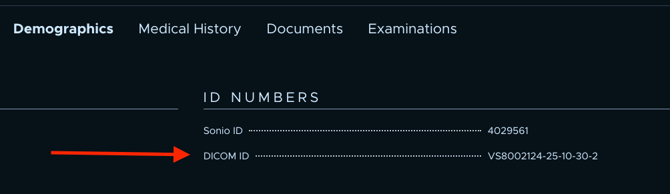
- In Sonio, open the patient record with the small folder next to their name. The DICOM ID is on the patient Demographics tab. The Accession Number is listed next to the exam you are looking for.
- On the machine, manually enter both the DICOM ID and the Accession Number.
- Start or continue the scan, then send the images from the ultrasound machine to Sonio as usual.
Entering both links your scan to the correct patient and the correct exam in Sonio.
Where to locate Accession Number:

Where to locate DICOM ID:
If the patient or exam is not in Sonio at all
The patient or exam does not appear on your dashboard, even with filters widened. Likely causes:
- The site has no EHR integration, so exams are created in Sonio directly, or the EHR feed is temporarily down.
- A required field was missing on the order.
- The order type is not ingested by Sonio.
You have two workarounds:
- Create the exam in Sonio. Use the New Exam button. See "How to create a patient in Sonio (no EHR integration)".
- Scan first, then reconcile. Create the patient on the machine, scan, then move or merge the images onto the correct patient in Sonio afterward. See "How to move an entire exam to another patient".
Note: an EHR-created or signed exam cannot be moved in-app without unsigning first or submitting a ticket.
💡 Tip
On the machine, enter both the DICOM ID and the Accession Number. Together they match your scan to the right patient and the right exam in one step, so nothing has to be reconciled afterward.
⚠️ A few things to keep in mind
Child exams in an autogrouped set appear only under the parent, not on the machine worklist. An EHR-created or signed exam cannot be moved in-app without unsigning first or submitting a ticket. Most connectivity and scheduling-configuration fixes are a task for a site admin or your Sonio Solutions Engineer, not something you change on the machine yourself.
Common questions / troubleshooting
It is on my dashboard but not on the machine. What now?
Refresh the worklist on the machine first. If it still does not appear, check whether the machine points at Sonio's worklist server, whether the appointment type is configured to appear in Sonio and on the worklist, and whether the Uplink is online and the entry is within the time window. To scan now, enter the DICOM ID and Accession Number on the machine manually.
It is not in Sonio at all. What now?
Widen your dashboard filters first. If it is still missing, the site may have no EHR integration, the feed may be down, a required field may be missing, or the order type may not be ingested. Create the exam with the New Exam button, or scan on the machine and move or merge it onto the correct patient afterward.
I scanned and the images went to the wrong patient. How do I fix it?
This can happen when the patient was created on the machine or the wrong worklist entry was selected. Use Move entire exam to correct patient to consolidate the images onto the right patient. Unsign the exam first if it is signed.
How do I refresh the worklist?
Refresh the worklist from the ultrasound machine so it re-queries Sonio's worklist server. The exact steps vary by ultrasound vendor, so check your machine workflow or ask your site administrator if you are not sure where to refresh the worklist.