![Sonio-logo-samsung-1 1-1.png]](https://lp.sonio.ai/hs-fs/hubfs/Sonio-logo-samsung-1%201-1.png?height=40&name=Sonio-logo-samsung-1%201-1.png)
When should I use this?
The manual upload feature allows you to upload images directly to an exam in Sonio when they couldn't be automatically transmitted from the ultrasound machine, such as exams performed in a hospital.
Supported formats
- DICOM (.dcm): supported.
- JPEG (.jpg / .jpeg): supported where your site has JPEG upload enabled. [CHECK: JPEG is behind the sonio.upload_jpeg feature flag; confirm it is on for your audience.]
- Not supported: PNG and MP4.
All files must be from the same study, and must not have been uploaded to Sonio before. Measurements (aka Structured Reports or SR data) can be uploaded but have no preview (they show "SR"). The maximum file size is 128 MB.
How to upload
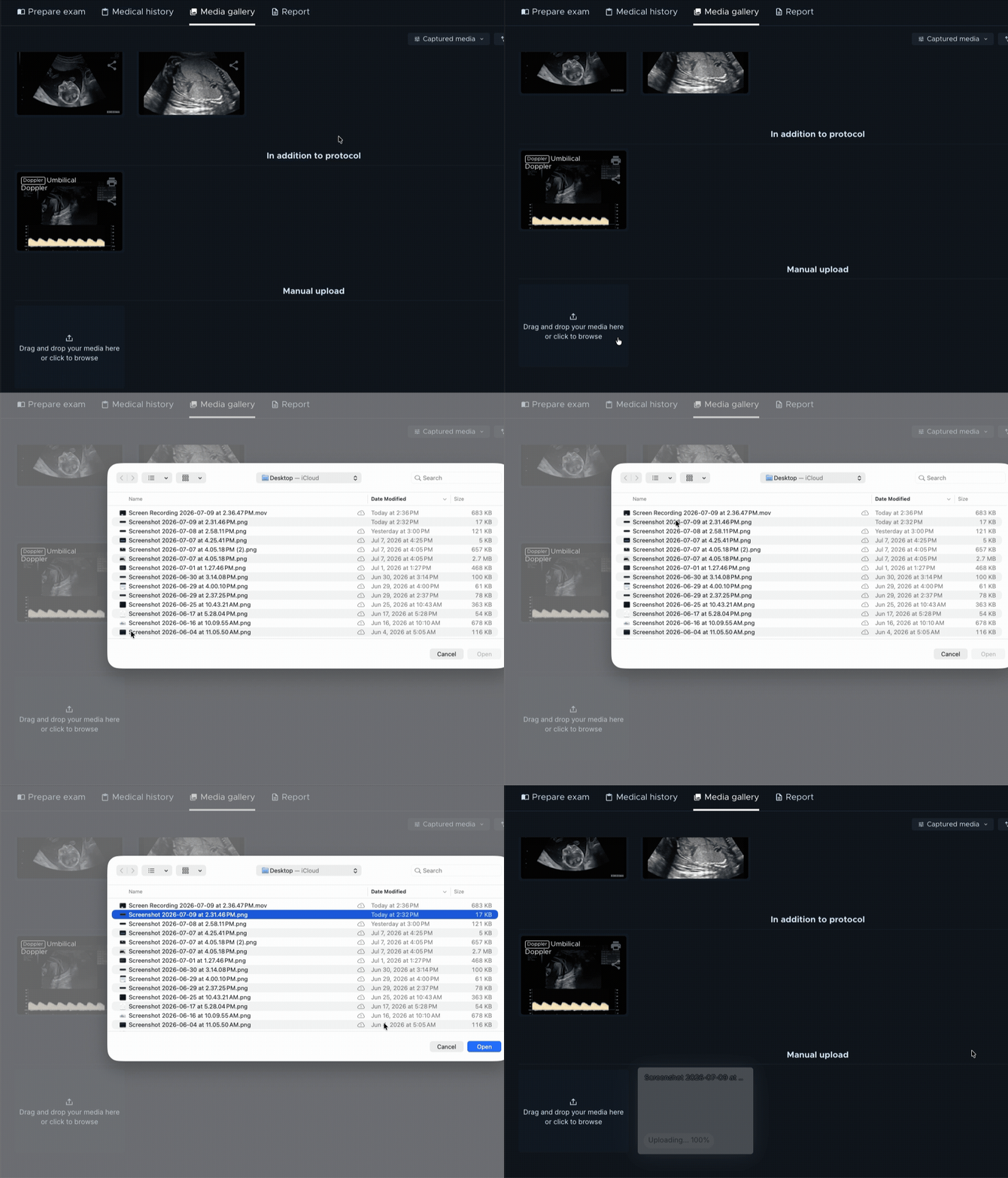
- Open the exam in Sonio.
- In the images panel, find the Manual upload area.
- Click Drag and drop your media here or click to browse, or drag files onto it.
- Select the files. They must all be from the same study.
- Wait for the upload and processing to finish. Do not close the browser or navigate away during upload.

Errors and how to fix them
| Error | Meaning | What to do | Retry available |
|---|---|---|---|
| Different study | The file's study differs from this exam, or it was already uploaded elsewhere | Ensure all files are from the same study and were not uploaded before | No |
| Different patient | The file's patient differs from the exam's patient | Use files for this patient | No |
| File format not supported | The file is not a supported format | Use DICOM (or enabled JPEG) | No |
| Image already uploaded | The image is already in Sonio | Select a different image | No |
| Uplink disconnected | The Uplink is not connected | Check the Uplink, then Retry | Yes |
| Processing timed out | Processing took too long | Check your connection, then Retry | Yes |
| Internal system error | Unspecified error | Retry; contact support if it persists | Yes |
| File too big (128 Mb max) | The file is over the size limit | Use a smaller file | (retry will not help) |
When more than one upload errors, use Retry all (for the retryable ones) or Discard all to clear them.
💡 Tips
- Keep cineclips to a few seconds.
- Verify all DICOM files belong to the same study.
- For poor JPEG quality: export at the highest quality from the machine and avoid repeated compression.
Contacting support
If you have tried the steps above and still have errors, note which files fail and their exact error messages, then contact Sonio Support. Use the exam URL to identify the case, and do not include patient names or dates of birth.