![Sonio-logo-samsung-1 1-1.png]](https://lp.sonio.ai/hs-fs/hubfs/Sonio-logo-samsung-1%201-1.png?height=40&name=Sonio-logo-samsung-1%201-1.png)
How it works
The flow has two parts: review, then submit.
First you review the exam. You check the captured images and views, the measurements, and the report fields. Mandatory fields are marked with an asterisk (*) and must be filled before you can submit.
Then you submit. Clicking Submit sends the exam and report to the reading provider. The exam status changes to Sent to Provider, and the record shows when it was submitted and by whom.
Submitting does not lock the exam. You can still edit it after sending. The exam locks only when the reader signs the report.
Keep the two roles clear:
- Submit is your action as the sonographer. It hands the exam to the reader.
- Sign is the reader's action. It finalizes and locks the report.
Some users can do both. A reader can submit and sign. A sonographer or practitioner can typically submit but not sign, which is why viewers do not see the Submit button.
Step-by-step: Review and submit an exam
- Review the captured images.
- Review the measurements and the report fields. Fill every mandatory field (marked with an asterisk *). If a mandatory field is missing, Sonio blocks the submit and scrolls the report to the first missing field, shown in red.
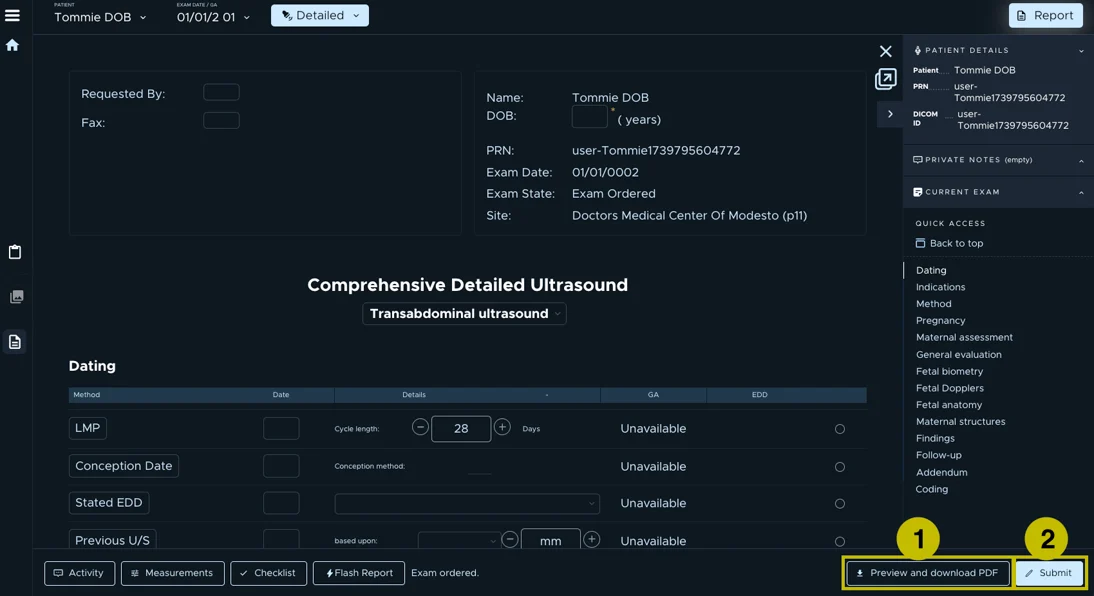
- Open the PDF preview (see #1 on image) using the Preview and Download PDF button to do your final check.
- Click Submit (from the report's bottom bar (see #2 on image below), or from the PDF preview).
You'll know it worked when you see "The report has been submitted." and are redirected to your dashboard. The exam now shows the status Sent to Provider, with the submission date, time, and your name.
💡Tip: submit from the PDF preview
Open the PDF preview with Preview and Download PDF to do your final check, then submit right there. This saves you from clicking back into the report and is the quickest way to run the review-and-submit pass.
⚠️ Before you submit
Mandatory fields block submitting. If any asterisked field is empty, the Submit button in the PDF preview is disabled and shows "Exam cannot be submitted until all mandatory fields are filled." with a Return to report link. Fill the missing field, then submit.
A submitted exam is still editable; it is not locked until the reader signs. If new images arrive after you submit, Sonio flags "Exam updated since submission" so the reader knows.
Common questions / troubleshooting
The Submit button is greyed out and I cannot submit.
This means a required field is still missing. In the PDF preview the button shows "Exam cannot be submitted until all mandatory fields are filled." Use the Return to report link, or let the report jump you to the first missing mandatory field (shown in red), fill it, and submit. Note: for a demised fetus, mandatory fields are waived and do not block submitting.
What is the difference between Submit and Sign?
Submit is your action as the sonographer. It sends the exam to the reading provider and sets the status to Sent to Provider. It does not lock the exam. Sign is the reader's action. It finalizes and locks the report. Some users can do both; a sonographer typically submits but does not sign.
I submitted but need to change something.
You can. A submitted exam is still editable, because submitting does not lock it. Make your change. If new images arrive, Sonio flags "Exam updated since submission" for the reader. Once the reader signs, the exam locks, and a signed exam must be unsigned (revised) by someone with permission before it can change.
I do not see a Submit button.
Two common reasons. Either the report is already submitted or, you may not have permission to submit an examination, since the Submit button only appears for users who have it.