![Sonio-logo-samsung-1 1-1.png]](https://lp.sonio.ai/hs-fs/hubfs/Sonio-logo-samsung-1%201-1.png?height=40&name=Sonio-logo-samsung-1%201-1.png)
Notifications allow you to label exams across all dashboard views. For example, you can flag any exams where you are assigned as the sonographer or reader.
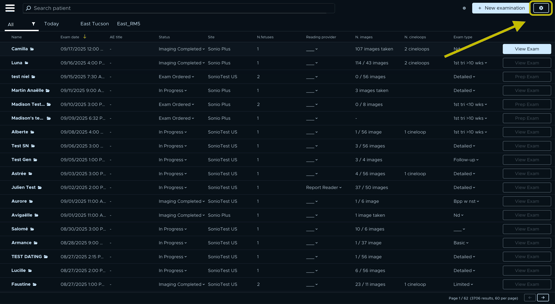
- Click the settings wheel in the top right corner.
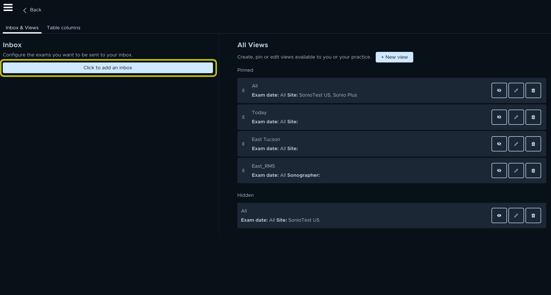
- Select “Click to add inbox.”
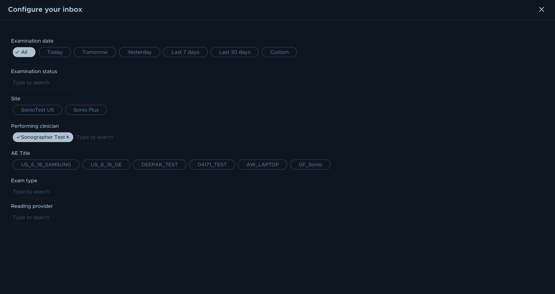
- Customize the inbox according to your needs. For example, you can set it to notify you about all exams where “Sonographer Test” is the assigned sonographer.
- To exit, simply close the window in the top right corner.
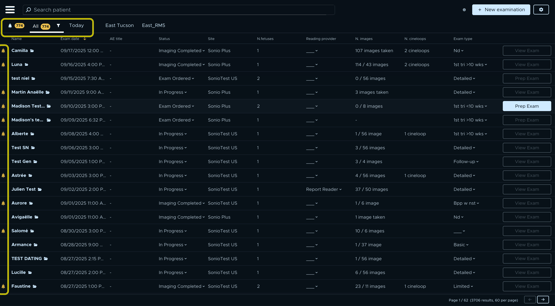
You can access your inbox by selecting the bell icon on the left panel. Here you’ll see all exams where you are the assigned sonographer.