![Sonio-logo-samsung-1 1-1.png]](https://lp.sonio.ai/hs-fs/hubfs/Sonio-logo-samsung-1%201-1.png?height=40&name=Sonio-logo-samsung-1%201-1.png)
Preview the PDF
- On the Report tab, click Preview and Download PDF in the bottom bar.
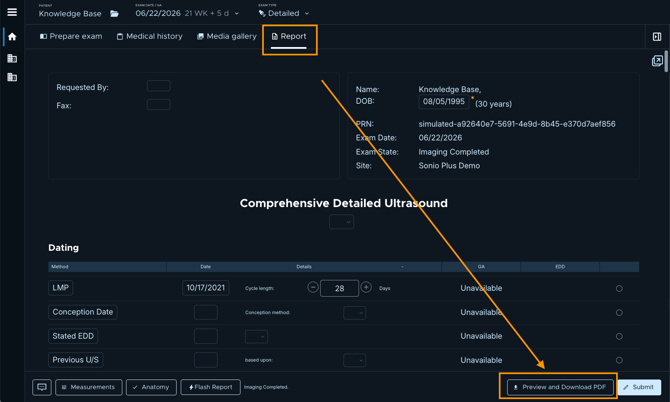
- The Report preview window opens, showing the PDF of your report as it stands.
Note: the preview reflects your report at the moment you open it. It does not refresh while open, so close and reopen it to see your latest edits.
Print or download
From the Report PDF preview window:
- Click Print to print the report.
- Click Download PDF to save it as a PDF
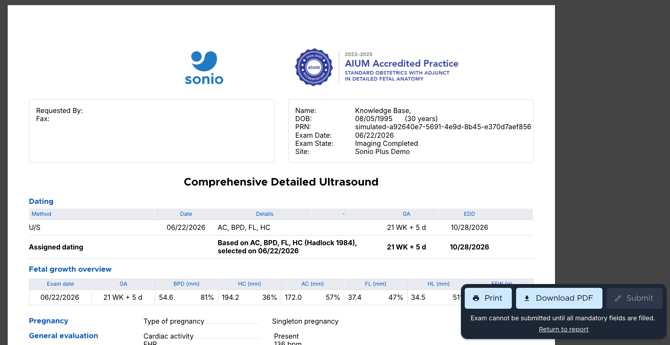
Submit or sign from the preview
You can also Submit or Sign the report from the preview window, as long as no mandatory fields are missing. If some are, use Return to report to complete them, then try again.
Common questions / troubleshooting
The preview did not show my latest change.
Close and reopen the preview. It captures the report's state when you open it and does not live-update.
I cannot submit or sign.
The report still has missing mandatory fields. Complete them, then submit or sign.