![Sonio-logo-samsung-1 1-1.png]](https://lp.sonio.ai/hs-fs/hubfs/Sonio-logo-samsung-1%201-1.png?height=40&name=Sonio-logo-samsung-1%201-1.png)
What you'll learn
- Why a new exam lands on a previous pregnancy, and what controls it.
- How to set up and star the new pregnancy before scanning, so future exams attach correctly.
- How to keep the machine worklist clean so the scan matches the right patient and order.
- What to do if an exam already attached to the wrong pregnancy.
Before you start
- The patient's pregnancies are listed in the Summary tab of the patient page, each with a star.
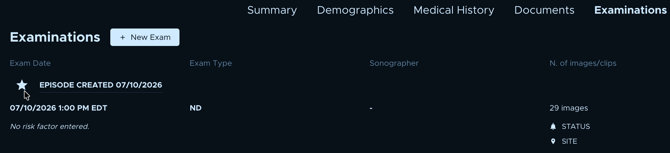
- Open the patient page via the folder ( 📂) icon next to the patient name. From an unsigned exam, you can also use the clipboard icon ("Edit pregnancies assignment").
- Editing pregnancy assignment requires report/exam-edit permission.
How it works
In Sonio, a patient's exams are grouped into pregnancies. Each pregnancy is one episode (the user-facing word is "pregnancy"; internally it is an "episode", and one header still reads "Current episode"). One pregnancy is the patient's preferred pregnancy, marked with a star (tooltip "Set as preferred pregnancy").
New exams attach automatically to the preferred pregnancy. A new exam inherits the patient's preferred pregnancy unless it is explicitly reassigned.
Sonio does not automatically start a new pregnancy when a patient returns. There is no automatic separation after a set number of months. So for a returning patient, if the previous pregnancy is still the starred one, her new exam attaches to that previous pregnancy.
When that happens, the new exam inherits the previous pregnancy's dating and carried-forward data. Dating and carry-forward are per-pregnancy, so the exam shows a wrong gestational age and EDD. This is the single most common cause of a returning patient showing the wrong GA.
Step-by-step: Set up the new pregnancy before you scan
- Open the patient page using the folder icon next to the patient name. From an unsigned exam, use the clipboard icon ("Edit pregnancies assignment").
- Go to the Summary tab. You will see the patient's pregnancies listed, each with a star.
- Click on the 3 dots on the right side of the page.
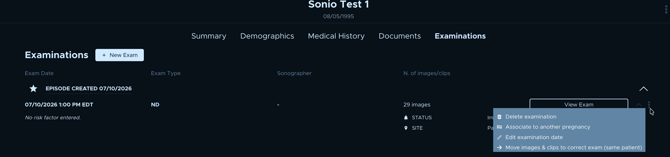
- Click on Associate to another pregnancy
- Create a New pregnancy for this visit.
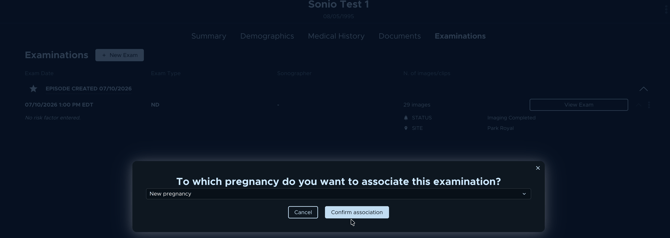
- Set the new pregnancy as the preferred pregnancy by clicking its star (tooltip "Set as preferred pregnancy").
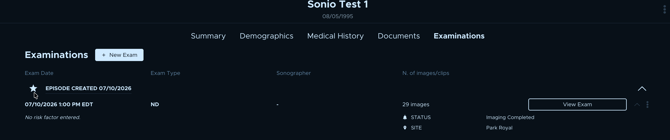
- Confirm the star now sits on the new pregnancy. All new exams will attach to the starred pregnancy, so today's scan lands on the right pregnancy.
💡Tip: keep the machine worklist clean
On the machine, select the patient's current worklist entry for today's visit, not an old appointment still showing in the worklist window. If the right entry is missing, enter the patient's DICOM ID and the correct Accession Number on the machine. This keeps the scan matched to the right patient and order. The pregnancy the exam lands on is still governed by the preferred pregnancy, so star the new pregnancy first.
⚠️The star only routes future exams
Setting the star routes only future exams. It does not move exams that already attached to the old pregnancy. Do this before scanning. If an exam already attached to the wrong pregnancy, reassign it (see "How to reassign pregnancy to new episode"). Signed or frozen exams must be unsigned before reassigning.
Common questions / troubleshooting
My returning patient shows the wrong gestational age (for example, 33 weeks). Why?
The star was most likely left on her previous pregnancy, so her new exam attached there and inherited the old dating. Set up a new pregnancy and star it, then reassign the affected exam to the new pregnancy.
A new exam attached to the old pregnancy. How did that happen?
New exams attach to the preferred (starred) pregnancy. If the previous pregnancy was still starred when the exam came in, the exam landed on it. Star the new pregnancy before the next scan.
Does Sonio start a new pregnancy automatically when a patient returns?
No. Sonio does not auto-start a new pregnancy and does not separate pregnancies after a set time. You create the new pregnancy and set it as preferred.
How do I move an exam that already attached to the wrong pregnancy?
Reassign it to the correct pregnancy using "Associate to another pregnancy". Unsign any signed or frozen exam first. See "How to reassign pregnancy to new episode" for the full steps. Note: this is different from autogroup, which only groups same-day duplicates and does not move exams between pregnancies.