![Sonio-logo-samsung-1 1-1.png]](https://lp.sonio.ai/hs-fs/hubfs/Sonio-logo-samsung-1%201-1.png?height=40&name=Sonio-logo-samsung-1%201-1.png)
Edit an image (annotate, measure, mask, calibrate)
- In the Media gallery, select the image.
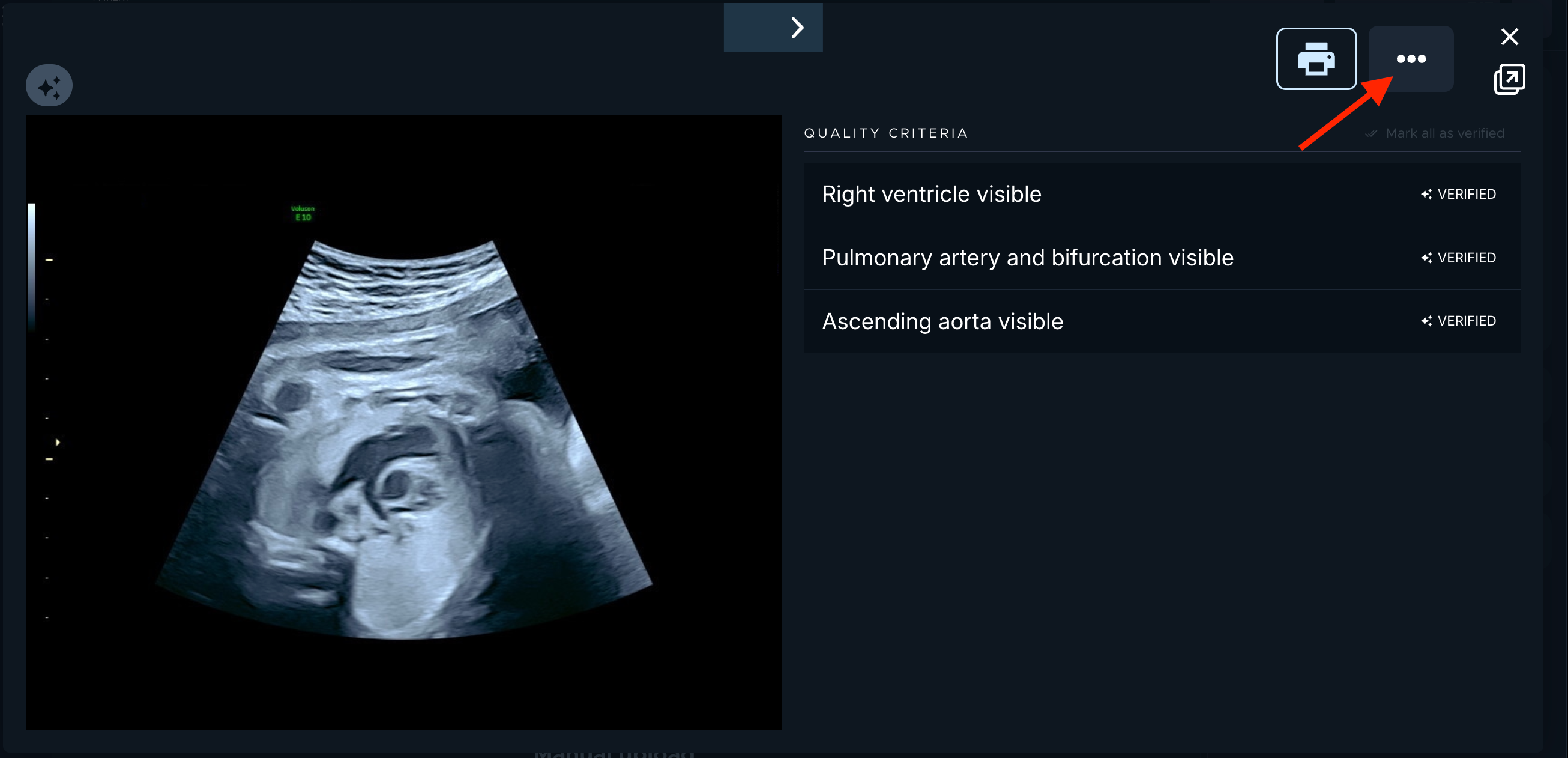
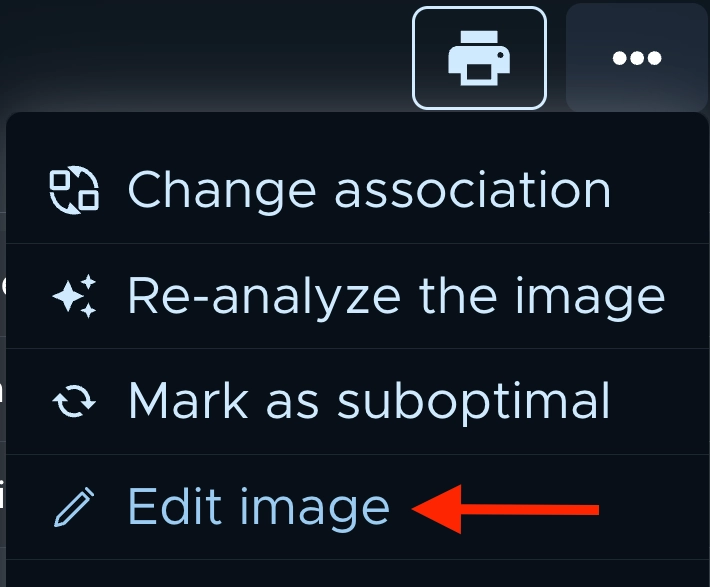
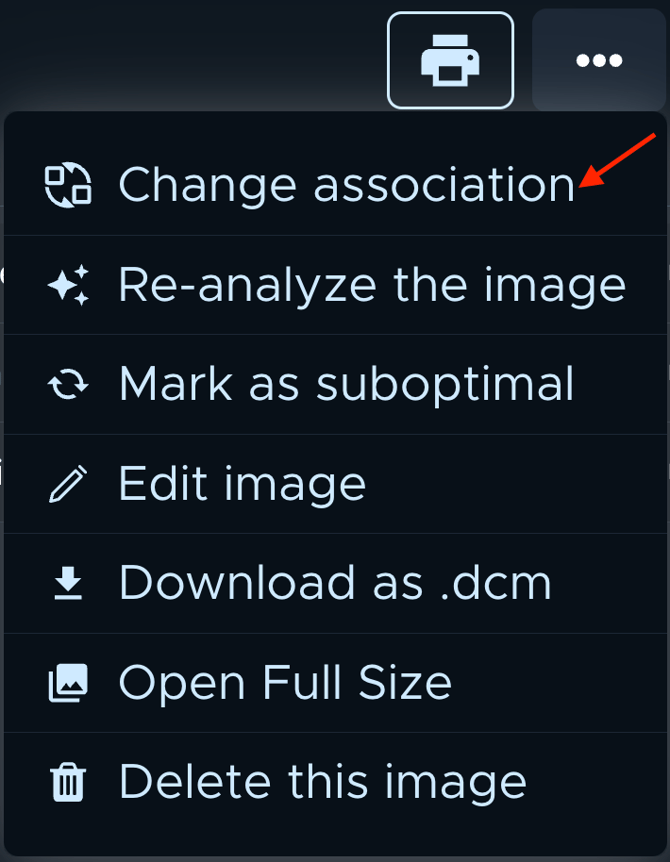
- Click the three dots, then Edit image.
-
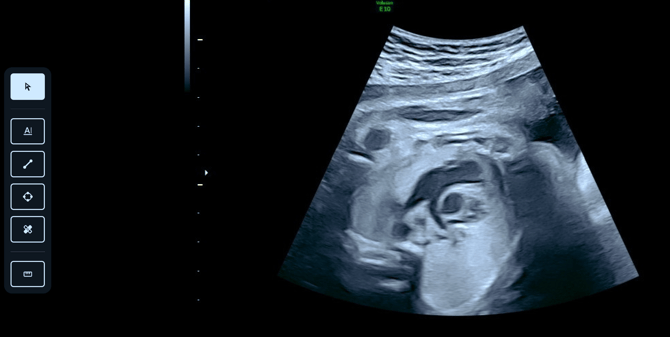
- select and move an item
- add a text annotation
- add a line or ellipse measurement
- add a black patch (to mask a pre-existing annotation or measurement)Use the left-panel tools to:
- calibrate the pixel spacing by drawing a reference segment
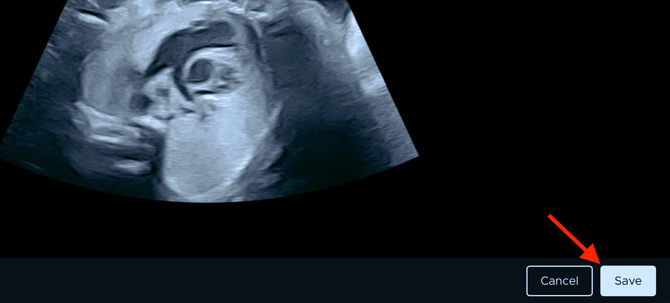
- Click Save. Saving creates a duplicate of the original image, so the original is preserved.
Change which view an image is associated with
- Select the image, click the three dots, then Change association.
- Under Which view corresponds to the selected image?, pick the correct view from your views (or from All views).
The image is re-associated to that view. Its fetus association is kept.
Work with cineloops
When you select a cineloop you can play or pause it, step frame by frame, and scrub the progress bar.
- To save a still image from a clip, move to the frame you want and click Capture. The still is added to the exam and shows an Extracted from cineloop badge. Use Go to cineloop to return to the clip.
Assign an image to the right fetus (multifetal exams)
On a multifetal exam, select the image and use the Fetus re-association dropdown to choose which fetus the image belongs to.