![Sonio-logo-samsung-1 1-1.png]](https://lp.sonio.ai/hs-fs/hubfs/Sonio-logo-samsung-1%201-1.png?height=40&name=Sonio-logo-samsung-1%201-1.png)
How it works
Canned comments are selectable text snippets that you insert into a report section. You will find them in the Impressions and Follow-up sections.
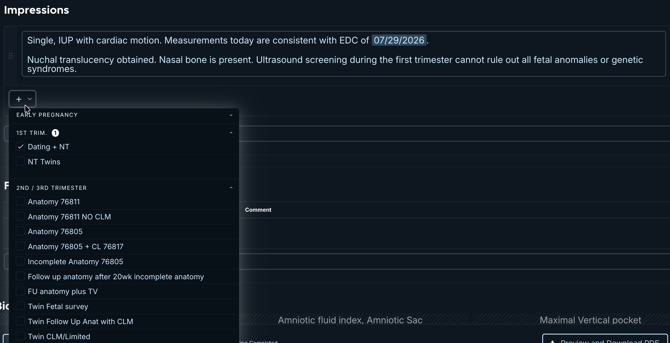
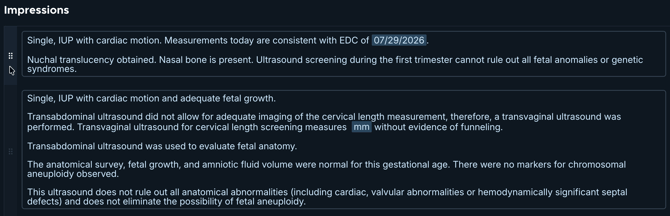
A canned comment can include dynamic variables: placeholders that auto-fill from the exam data, such as gestational age, estimated fetal weight, fetal presentation, or placenta position. On a multifetal exam, each placeholder fills the correct value per fetus. If a value is not available, the placeholder shows a small dot ("·") or a default.
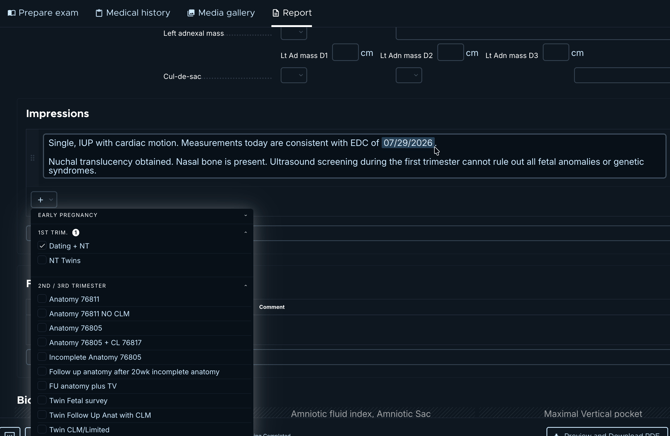
You can insert as many canned comments as you need. Each new one appears below the previous, and you can reorder them. The inserted text, with its variables resolved, prints in that section of the final PDF.
Step-by-step: Add a canned comment
- Open the field for the section you want to document (for example Impressions or Follow-up).
- In the picker that opens, use the search bar to find an option (the search bar appears automatically when there are many options).
- Browse the groups labeled Previously selected, Recent, and Most used, or work through the checkbox hierarchy to find what you need.
- Select an item to insert it into the section.
- Add more if needed. Canned comments are multi-select, so each new one appears below the previous.
- Confirm the inserted text appears in the section, with any variables resolved, and that it reads correctly on the PDF.
- Reorder the canned comments by dragging and dropping (in the table-based sections).
⚠️ Warning
Dynamic variables auto-fill from the exam data. After inserting a canned comment, check that the filled-in values (such as gestational age or estimated fetal weight) look right before you sign.
⚠️ Warning
Apply your flash report first, then add your canned comments. A selected canned comment may not behave as expected if you add it before the flash report.
Common questions / troubleshooting
Can I edit a canned comment's text after inserting it?
Yes, a canned commend can be edited after being inserted.
My dynamic variable shows a dot ("·") instead of a value. Why?
That means the value is not available from the exam data, so the placeholder shows a small dot or a default in its place. Fill in the underlying value (for example the measurement or dating) and the variable resolves.
Can I add my own canned comments?
Not from inside the report. The lists are configured by Sonio or your admin (Product Specialists set up the lists and any dynamic variables, and in-app management for practice admins is rolling out). You select from the configured lists.
My canned comment did not stick when I used a flash report. What happened?
Apply your flash report first, then add your canned comments. Adding a canned comment before the flash report can cause it to behave unexpectedly.