![Sonio-logo-samsung-1 1-1.png]](https://lp.sonio.ai/hs-fs/hubfs/Sonio-logo-samsung-1%201-1.png?height=40&name=Sonio-logo-samsung-1%201-1.png)
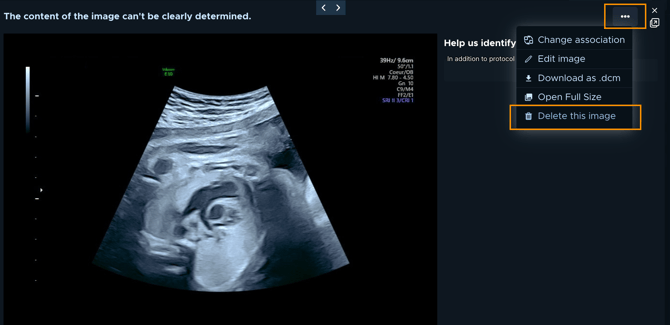
- In the Media gallery tab, click the image you want to delete to open it.
- Click the more (three dots) icon at the top-right of the image panel.
- Select Delete this image. For a cineloop, the option reads Delete this cineloop.
- In the confirmation "Are you sure you want to permanently delete this media?", click Confirm.

⚠️ Warning
Deleting an image removes it from the exam and from the report’s image selection, and there’s no undo in the app.
If you delete something by mistake, contact Sonio Support.
Common questions / troubleshooting
I do not see the delete option.
You can only delete an image while the exam is still open for editing. Once the report is signed (or the exam is locked), you won’t be able to delete images.
If the exam has not been signed and you don’t see the delete option, your role may not allow it. If you require these permissions, please submit a support ticket: Contact Sonio Support.
I deleted an image by mistake. Can I get it back?
There is no in-app undo. Contact Sonio Support as soon as possible.