![Sonio-logo-samsung-1 1-1.png]](https://lp.sonio.ai/hs-fs/hubfs/Sonio-logo-samsung-1%201-1.png?height=40&name=Sonio-logo-samsung-1%201-1.png)
How it works
Once a report is signed, it becomes locked and can’t be edited unless an amendment is made. Only users with permission to unsign a report can do this. These permissions are typically limited to physicians or reading providers. If you need this permission, contact your Account Manager to review what’s required.
Step-by-step: how to amend a signed report
- Open the signed (locked) exam.
- Click Edit the examination.
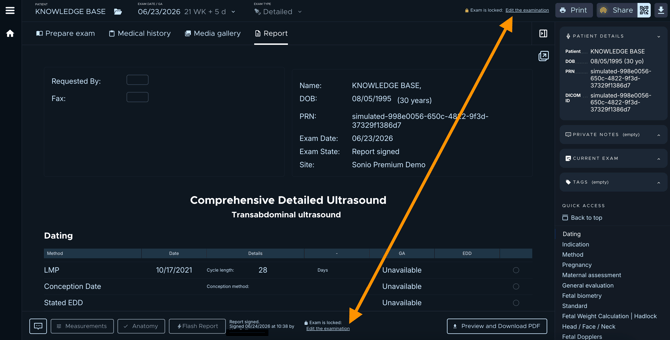
- Enter a Reason for amendment (required).
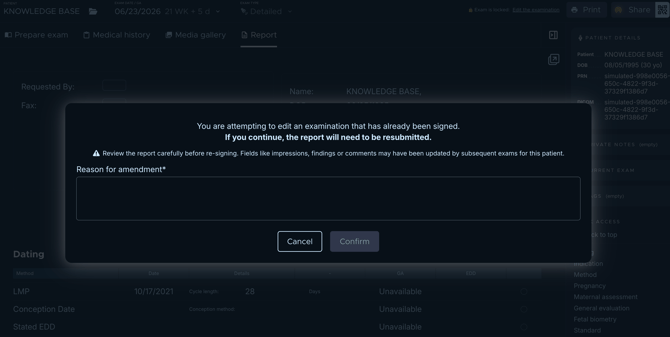
- Click Confirm (The report unlocks and the exam returns to the review state with status Sent to Provider).
- Make your necessary edits.
- When complete, click Sign the report (The amended PDF is stamped as a revised report, electronically signed by you on the new date).
Note: If you have Sonio fax, the resigned report will be resent by fax to your referring provider
⚠️ Warning
Review the whole report before re-signing. Reopening a signed report can pull in changes made since the original signing. A banner warns that fields like impressions, findings, or comments may have been updated by subsequent exams for the same patient. Review the whole report carefully before re-signing.
Common questions / troubleshooting
Who can amend a signed report?
Physicians have unsigning permissions by default and may also unsign reports on behalf of other providers within the same practice.