![Sonio-logo-samsung-1 1-1.png]](https://lp.sonio.ai/hs-fs/hubfs/Sonio-logo-samsung-1%201-1.png?height=40&name=Sonio-logo-samsung-1%201-1.png)
What you'll learn
- How to select which images appear on the report.
- How to change the layout and format of images on the report PDF.
How to select images
There are several ways to choose which images appear on the report. You can use any combination of them.
From the Report tab
- Open the report and scroll to the Images section near the end of the report.
- You can choose to select:
- All images = all images from the exam is included.
- Custom selection = only the images you select are included.
- None = no images are included.
- Clicking Edit selection and manually adding or removing an image switches the mode to Custom selection. Choosing All images selects every image; choosing None clears the selection.
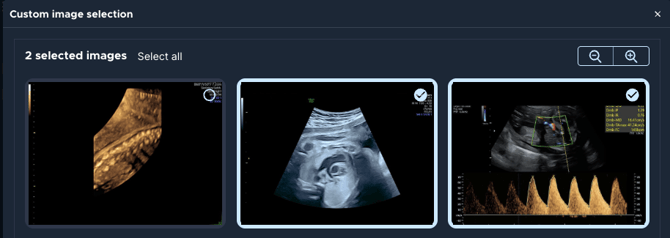
- Close the popup (the X). Your selection saves automatically.
From the “Media gallery” tab
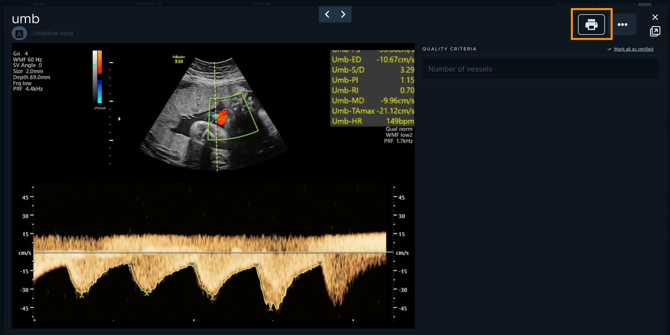
- In the Media gallery tab, click the Print icon to include the image on the report. This icon is available when you are previewing an image as well.
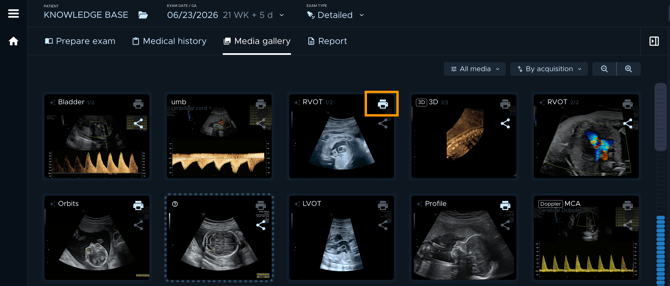
💡 Tip: Use the zoom controls to make images easier to select. Sonio remembers your zoom level, so your preference stays saved.
💡 Tip: Sonio can set up a preselected image templates for your exam types, so the right images are chosen for you automatically.
Changing the layout and format on images on the report
In the report Images section you can control how images appear:
- Images per line (columns): choose 1, 2 (the default), or 3.
- Show view name: toggle this to see the view name
- Full size: click the expand icon on an image to enlarge it to full width (An expanded image always appears first). Click again to return to grid size.
- Comment: add a comment in the space below each image
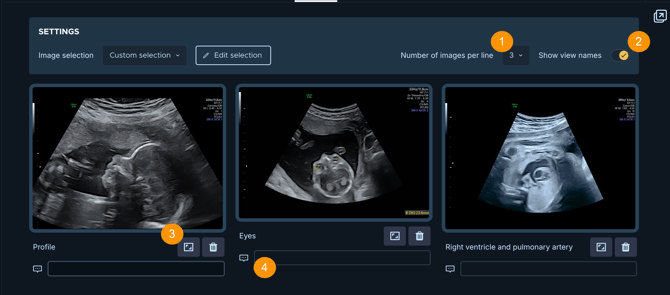
✏️ Note: Image ordering is based on the imaging protocol (if a protocol has been defined for the exam). Otherwise, images are ordered by acquisition time. Enlarged images always appear first on the report PDF.
Common questions / troubleshooting
I do not see the Print icon on images.
The Print icon is available from version 3.23.0. If you still do not see it, your configuration may not include print or share capabilities. Use Edit selection on the report instead.
My images appear in an order I did not expect.
Images follow protocol order, then acquisition order. You cannot drag to reorder them, but a maximized image always appears first.