![Sonio-logo-samsung-1 1-1.png]](https://lp.sonio.ai/hs-fs/hubfs/Sonio-logo-samsung-1%201-1.png?height=40&name=Sonio-logo-samsung-1%201-1.png)
Step-by-step: How to add or change clinical personnel
There are three ways.
Option 1: quick access from the report
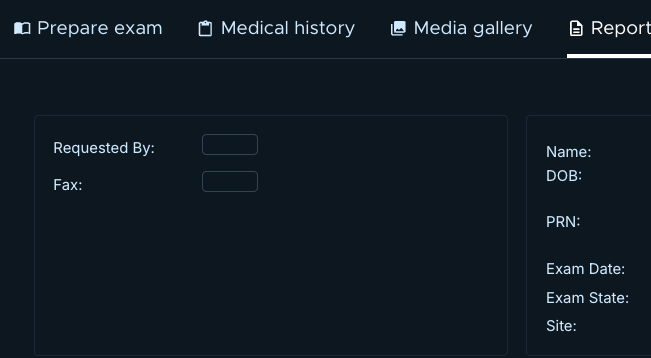
Click the Requested By field in the upper left-hand corner of the report (typically displays the referring provider’s name)
Option 2: when you submit
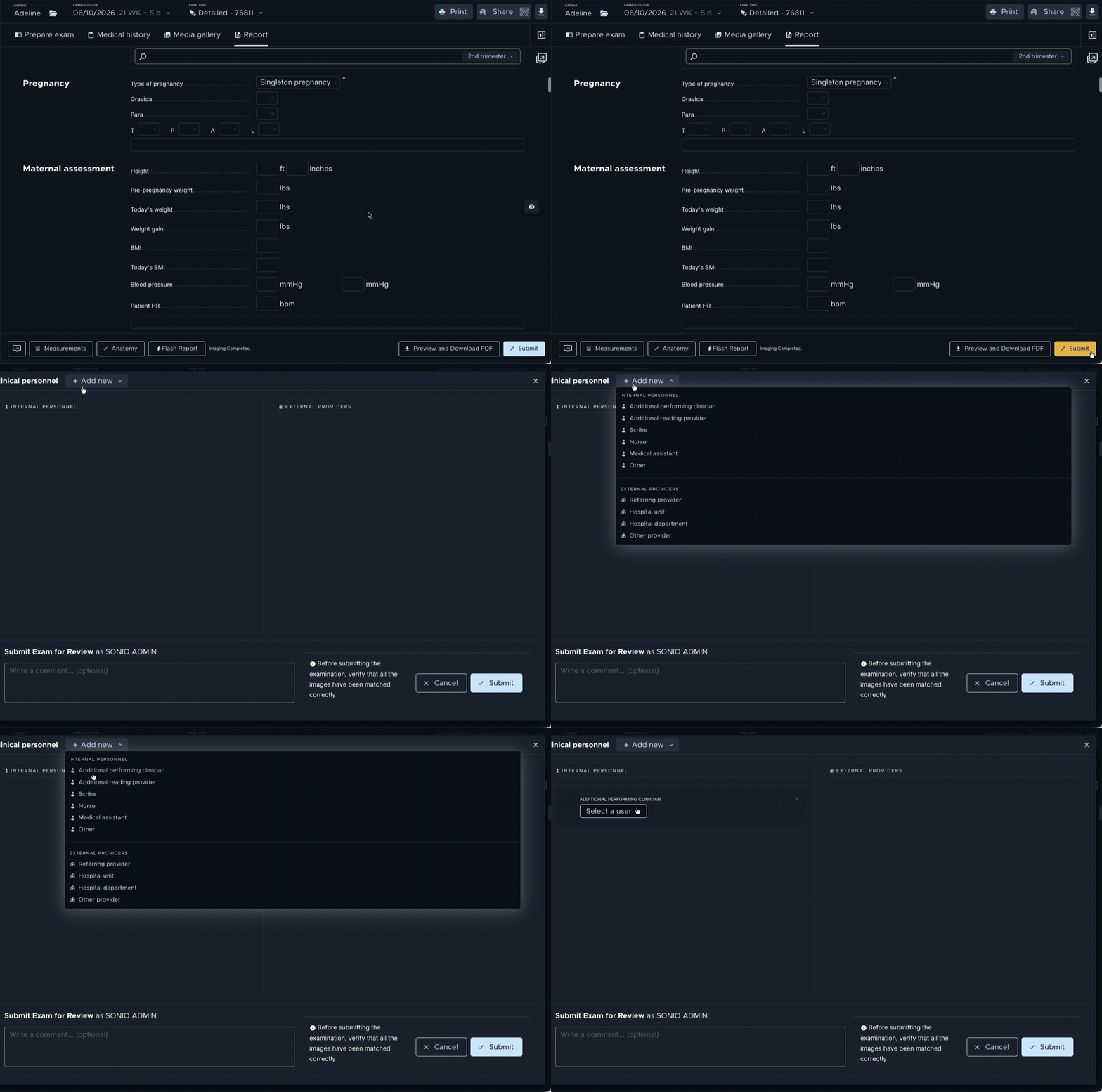
When you click Submit, the Clinical personnel panel opens. From there you can add or change both internal and external personnel.
Option 3: from Prepare Exam tab
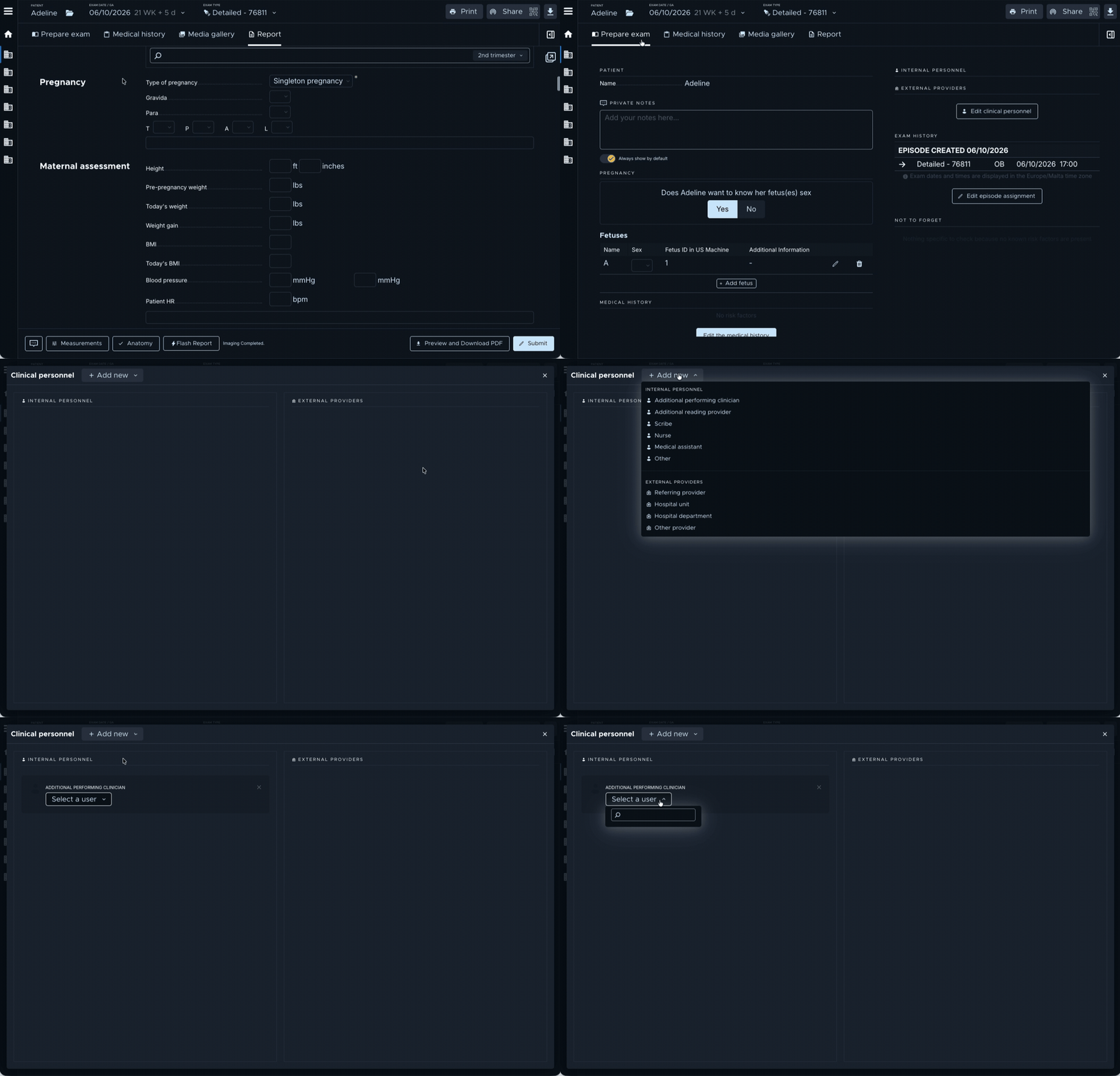
- Open the Prepare Exam tab (the Patient Information tab) at the top of the exam.
- Click Edit clinical personnel.
- Click + Add new and choose the personnel type (for example Reading Provider or Referring Provider).
- Use the dropdown or search to select the specific clinician.
Troubleshooting
I cannot find a specific clinician or referring provider.
Contact your practice management to add them.
The referring provider information is wrong.
Contact your practice management. They can edit referring providers from within the app.