![Sonio-logo-samsung-1 1-1.png]](https://lp.sonio.ai/hs-fs/hubfs/Sonio-logo-samsung-1%201-1.png?height=40&name=Sonio-logo-samsung-1%201-1.png)
What you'll learn
- Where and how to log in to Sonio.
- How a new user activates their account and sets a password.
- How to bookmark Sonio and add a desktop shortcut.
How to log in
- Open Google Chrome (preferred browser)
- Go to: **https://us.sonio.app/login**.
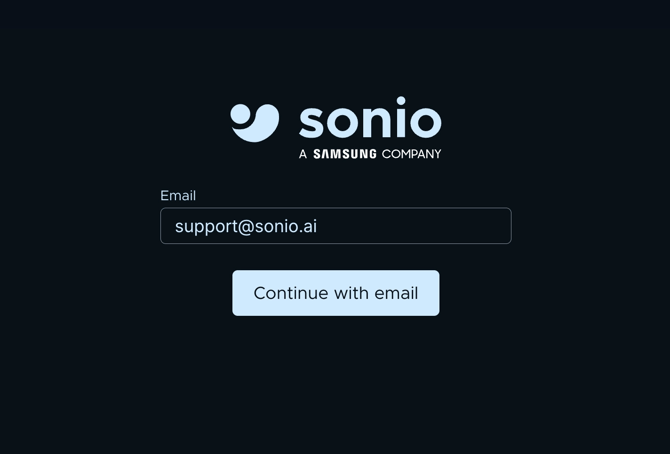
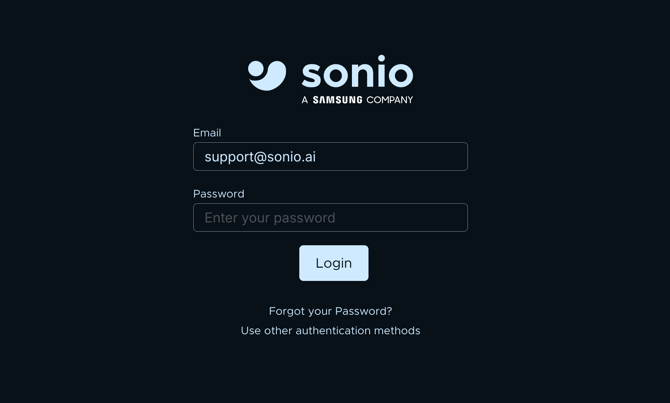
- Enter your Email and click Continue with email.
- If your organization uses SSO, you are redirected to your provider to sign in (see the SSO note below). Otherwise, enter your Password and click Login.
- Forgot your password? Click Forgot your Password? on the login screen.
New user? (password / non-SSO accounts)
Your account is created for you by a Sonio administrator.
- You receive an email titled "You are invited to join [your practice] on Sonio!" from no-reply@sonio.ai.
- Click Activate your account, fill in your information, and set a password.
- Log in at **https://us.sonio.app/login**.
Note: The invitation link works only to activate your account. After you’ve created your account, you’ll need to log in at https://us.sonio.app/login.
Save Sonio for quick access
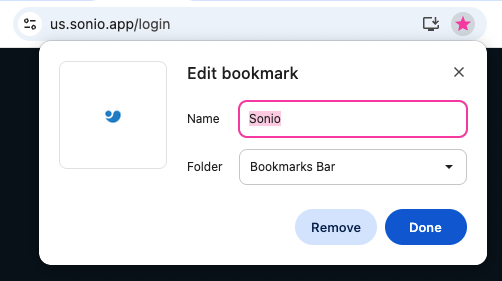
- Bookmark it. In Chrome, open https://us.sonio.app/login and click the star icon in the address bar to save a bookmark.
Common questions / troubleshooting
How do I request a new user account?
To request a new user account, submit a ticket to Sonio Support with the following information: name, role, credentials (if applicable), email, and the practices or sites the user needs access to.
My invitation link says it is expired.
That link is single-use. If you already created your account, log in at https://us.sonio.app/login. If you never finished creating your account, contact Sonio Support to resend the invitation.
I did not receive the invitation email.
Check your spam folder. If it is not there, ask your Sonio admin to resend it.
I forgot my password.
Use Forgot your Password on the login screen. See the related article for non-SSO users.