![Sonio-logo-samsung-1 1-1.png]](https://lp.sonio.ai/hs-fs/hubfs/Sonio-logo-samsung-1%201-1.png?height=40&name=Sonio-logo-samsung-1%201-1.png)
Before you start
- Creating flash reports requires the create/manage capability for your practice. If it is not enabled, the authoring options below do not appear (you can still apply existing flash reports). Don’t hesitate to reach out to our Support Team if you need the Flash Report Creation grant.
- A flash report is tied to one exam type, and is shared across your whole practice. Anyone in the practice can use it, and renaming or deleting one affects everyone.
Create a flash report
- Open a report of the exam type you want to address.
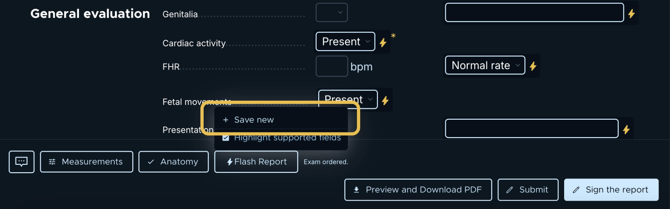
- On the report bottom bar, click the Flash Report (⚡) icon.
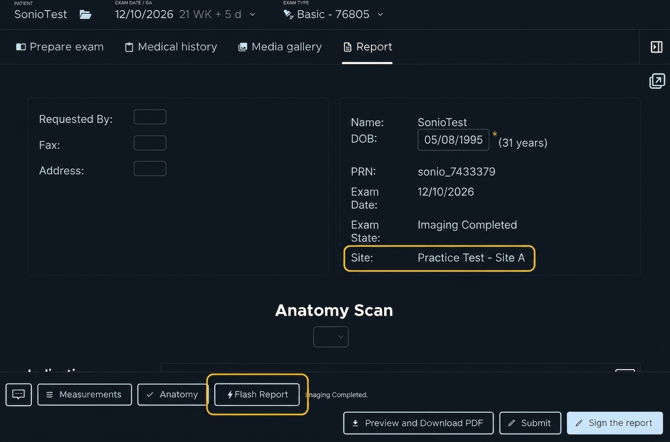
- You will be presented with three options:
- Save new — Choose this after you’ve filled out the report the way you want. It saves the current report as a flash report so you can reuse those entries later.
- Rename and delete existing — Use this to manage your flash reports: rename one or delete it.
- Highlight supported fields — Shows which fields can be automated (they’ll be marked with a ⚡ icon).
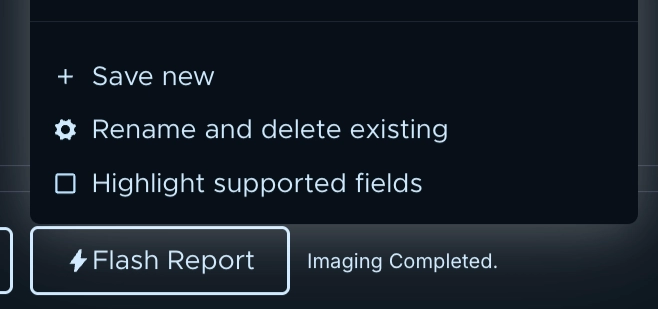
- Start by clicking Highlight supported fields to easily identify the fields you can automate.
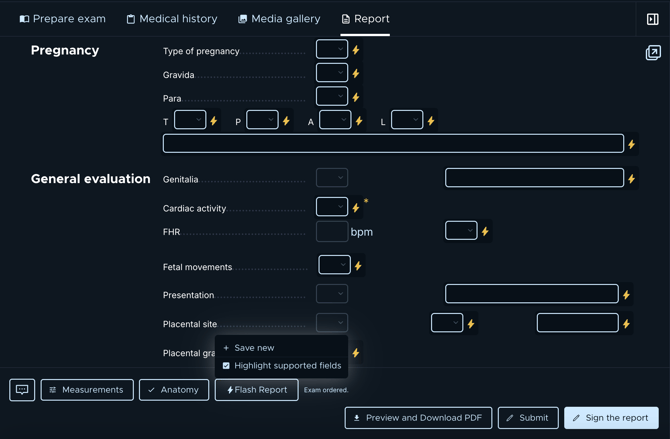
- Edit mode opens. Fields that can be automated are highlighted; the rest are disabled. Set the values you want the flash report to include. If some fields may change often, it’s perfectly fine to leave them blank. You don’t have to fill out every field.
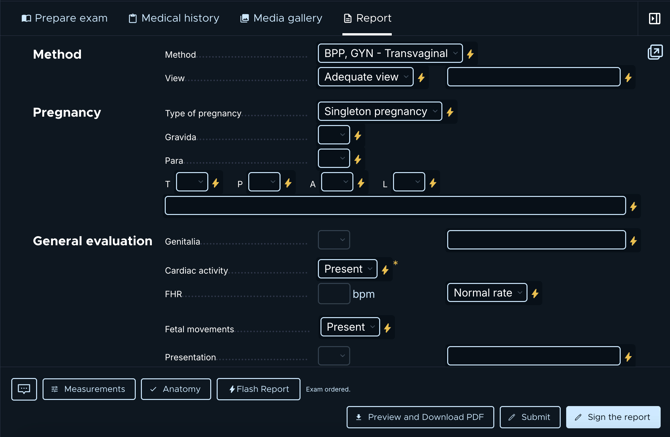
- Once you’re done, click again on the Flash Report (⚡) icon at the report bottom bar, then Save new.
- Name the flash report.
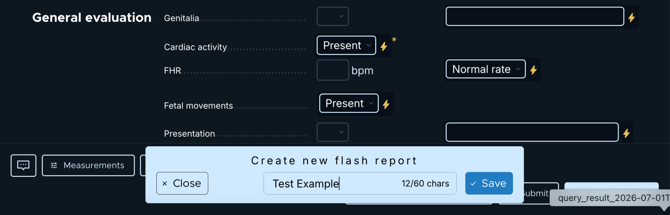
- Click Save, and you will then get a confirmation that the flash report was created for your practice.
What a flash report can include
-
✅ What you can automate with a Flash Report : A flash report can set custom fields (free text and dropdowns), Methods, Indications, and Findings.
-
❌ What you cannot automate with a Flash Report: It cannot set measurements, the fetal anatomy section, maternal assessment, genitalia, or macros.
Rename or delete a flash report
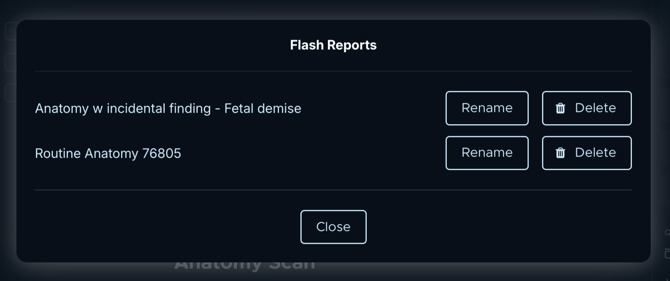
- Click the Flash Report (⚡) icon, then Rename and delete existing.
- For the flash report you want, click Rename to change its name, or Delete (then confirm) to remove it.
⚠️ Warning
You cannot edit a flash report's contents in the app. To change what it fills, delete it and create a new one. An included field left empty can overwrite a user's entry when the flash report is applied, so build flash reports to set the values you intend, and avoid leaving meaningful fields blank.
Tips for super users
- Keep the number of people who create flash reports small, so the list stays manageable.
- Use clear, descriptive names. Avoid special characters, which can block in-app rename and delete.
- Use Highlight supported fields in the ⚡ menu to see which fields a flash report can set.