![Sonio-logo-samsung-1 1-1.png]](https://lp.sonio.ai/hs-fs/hubfs/Sonio-logo-samsung-1%201-1.png?height=40&name=Sonio-logo-samsung-1%201-1.png)
- The patient must have at least two exams. With only one exam, there is no destination to move images/clips to.
- The destination exam must be unsigned. Only unsigned exams appear in the destination list.
- The source exam must have a DICOM study on file. The action is enabled as long as a DICOM study exists, but it’s not required to have images or clips
- Neither the source exam nor the destination exam can be signed. If a report is signed, unsign it first, then try again.
- You must have read and edit permission on the exam to perform this action. Roles such as Sonographers and Readers can move images and clips. Users with read-only access, such as Residents, do not have this option.
How it works
This action moves every image and clip from a source exam to another exam belonging to the same patient. The destination exam can already contain images and clips, or it can be empty. Moving the images and clips leaves the source exam empty.
You decide what happens to the source exam. By default it is kept and set back to "Exam Ordered". If you choose to delete it, it is permanently removed. The destination exam status is set to "Imaging Completed" once the move succeeds.
Step-by-step: Move images and clips to the correct exam (same patient)
- Navigate to the patient record that currently has the exam.
- Locate the exam that contains the images and clips you need to move.
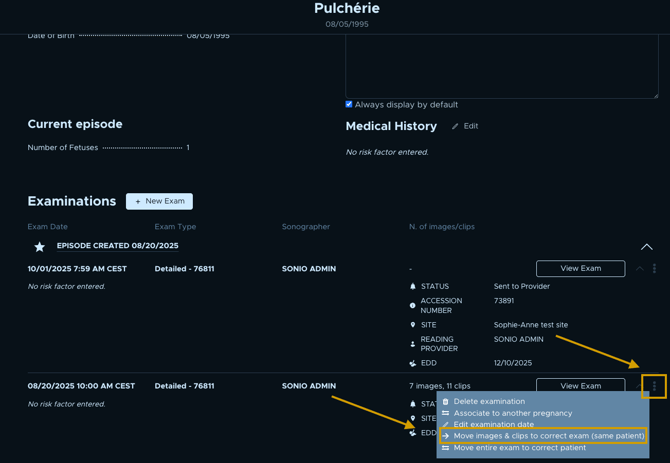
- Click the three-dot menu (⋮) next to the exam.
- Select Move images & clips to correct exam (same patient).
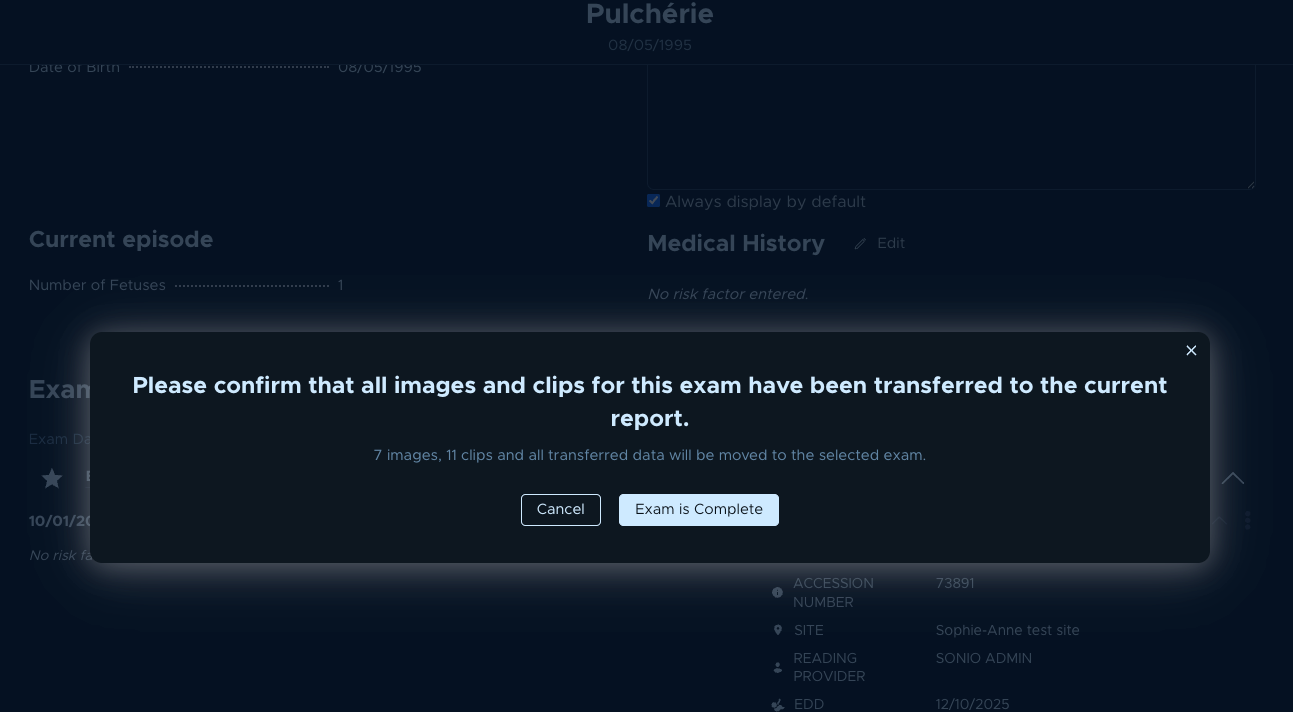
- Read the confirmation: Please confirm that all images and clips for this exam have been transferred to the current report. Click Exam is Complete to continue, or Cancel to stop.
- On the destination screen (Which exam do you want to move all images and clips to?), open the dropdown (Select a destination exam) and choose the exam for the same patient. Each option shows the exam date, accession number, and exam type. Moving all images and clips will leave the initial exam empty.
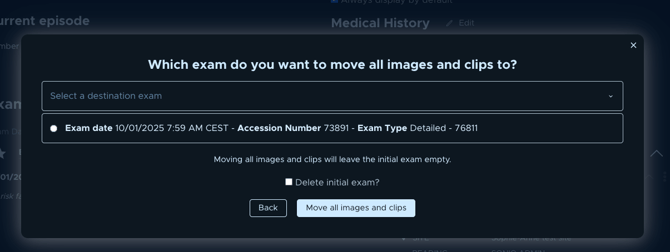
- Decide what happens to the source exam. Leave Delete initial exam? unchecked to keep it. Check it to delete it permanently.
- Click Move all images and clips.
- Confirm on the final prompt. If you kept the source exam: Are you sure you want to move all images and clips to the selected exam?, then click Yes, Move all images and clips. If you chose to delete it: Are you sure you want to move all images and clips to the selected exam and permanently delete the initial exam?, then click Yes, Move and Delete.

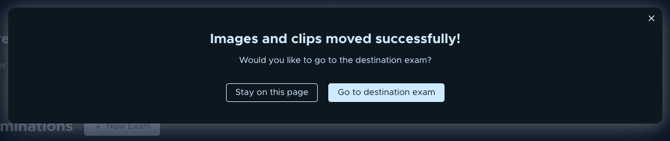
- You will know it worked when you see Images and clips moved successfully! (if kept) or Images and clips moved and initial exam deleted successfully! (if deleted). All images and clips now appear in the destination exam, its status reads "Imaging Completed", and a kept source exam is set back to "Exam Ordered".
- On the Would you like to go to the destination exam? prompt, choose Stay on this page or Go to destination exam.
💡 Tip: The destination exam does not need to be empty. If it already contains images and clips, the moved ones are added to it.
⚠️ Warning: Deleting the initial exam is permanent. If you are not certain, leave Delete initial exam? unchecked. You can delete the empty exam later.
Common questions / troubleshooting
Why is the menu option disabled?
The action is disabled when the source exam has no imaging, when the patient has only one exam (no destination to move to), or when the source exam is signed.
The source or destination exam is signed. What do I do?
You cannot move images and clips when either exam is signed. Unsign the report first, then try again. A signed destination exam will not appear in the dropdown.
I need to move an exam to a different patient instead.
This action only moves between exams for the same patient. To move a whole exam to another patient, see the related article below.
I got a "Something went wrong" error.
Submit a ticket with the current exam's URL and the target patient's first name, last name, and date of birth.