![Sonio-logo-samsung-1 1-1.png]](https://lp.sonio.ai/hs-fs/hubfs/Sonio-logo-samsung-1%201-1.png?height=40&name=Sonio-logo-samsung-1%201-1.png)
Step-by-step: move an exam to the correct patient
- Go to the patient record that currently has the exam.
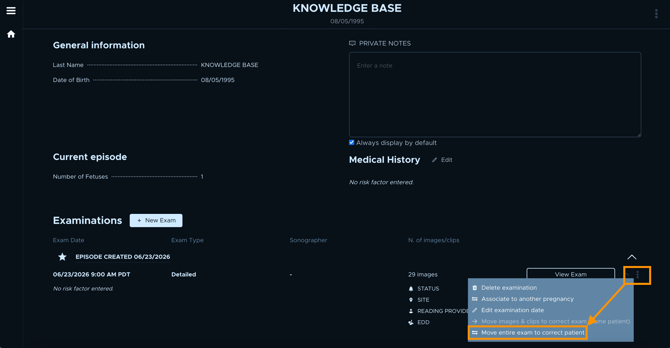
- Find the exam, click the three-dot menu (⋮), and select Move entire exam to correct patient.
- Confirm all DICOM have transferred from the ultrasound machine, and click Exam is Complete.

- On the patient selection screen, search for the correct patient by patient name or MRN, and select them.
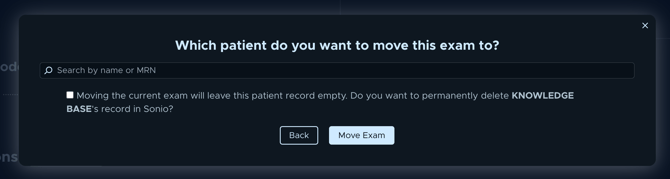
- On success: the exam appears under the correct patient's record, its status is set to Imaging completed, all DICOM move together, and you are redirected to the moved exam.
When you cannot move an exam
- Empty exam: if the exam has no images or clips, the action is disabled. You may still see the option in the menu, but it is not clickable.
- EHR-linked exam: if the exam came from an EHR integration, you are asked to submit a ticket. EHR-scheduled exams are tied to orders Sonio does not manage and cannot be reassigned in Sonio.
- Multifetal or fetus-related cases: submit a ticket for twins or triplets, an exam with no associated fetus, an intended patient with no current episode or no fetus, or an intended patient with a multifetal episode.
- Signed exams: a lock icon replaces the three-dot menu. Unsign the report first, move the exam, then re-sign after confirming it is under the correct patient.